Handling Email Spam and Phishing

Spam
Email spam is unsolicited mass email. Some spam email can contain offensive content or it may have an attachment that contains a virus that has the potential to harm your computer or the network.
All incoming outside email messages are passed through the TMU mail filters to determine whether they are legitimate senders or from "spammers".
- Sometimes legitimate messages are falsely flagged as spam. These messages may be forwarded with full headers to notspam@torontomu.ca.
- Some messages that are spam will make it past TMU's spam filters. These messages may be forwarded with full headers to spamrec@torontomu.ca.
Appropriate measures will be taken to try and reduce the amount of incoming spam and reduce the number of messages that have been falsely flagged as spam.
Currently, incoming outside email messages passed through the TMU mail filters which are considered to be spam are quarantined and not delivered to your mailbox. This may cause potential problems because some legitimate messages are falsely flagged as spam, quarantined and the users don’t know about it. Currently, users contact CCS to check if a message they were expecting has been quarantined and if so CCS will manually release the message from quarantine.
Find more on how to manage spam in your TMU Gmail account.
Often when CCS troubleshoots an email issue, or reported spam, it’s useful to have the “full headers” of a message. This helps to accurately track where a message came from.
- Select the message.
- Using the drop-down menu in the upper-right, select Show original.
- Select Copy to clipboard.
- Paste into a new message.
- Select the message.
- From the View menu select Headers then All.
- Forward the message.
- Double-click the message to open it in a new window.
- Select the File tab in the new window and click the Properties button.
- The headers are in the bottom portion of the window (beside Internet headers:). Copy headers.
- Forward the original message and paste the copied headers into that message before sending it.
Gmail
- Mark the message as “not spam” by clicking the not spam button above the message.
- If the yellow bar above the message (“Why is this message in Spam?”) indicates that it was blocked due to your “organization's request” (see below), forward the message (with full headers) to notspam@torontomu.ca.

Because of the way some external sites block Google content, it’s best to use an image from the TMU branding site (opens in new window) . Download and unzip the Logo Download file. Upload the TMU-rgb.png file to your My Drive on Google Drive.
You can add this to your Gmail signature. Select on the gear icon and select Settings > General > Signature. Then use the Insert Image icon, select the My Drive tab and select the TMU-rgb.png file. Select on Select. Select on the image and choose the appropriate size.
Phishing
Phishing is a deceptive form of cyber attack where malicious actors attempt to manipulate you into sharing personal or sensitive information like, login credentials and passwords, files and data or trick you into downloading viruses and malware. Attackers use a variety of channels to deceive you, including emails, fraudulent websites and login pages, text messages and voice calls.
Table of Contents
Phishing emails are designed to deceive you into:
- Giving up sensitive information like your TMU username and password credit card or bank account numbers;
- Opening an attachment and installing malicious software; or
- Impersonating someone in an attempt to commit fraud with your help.
What to do with a phishing email

1: Keep yourself safe
Avoid clicking unverified links or opening unexpected attachments provided in emails.

2: Keep your community safe
Report a phish by forwarding it to spamrec@torontomu.ca and delete it from your mailbox.
If you aren’t sure it’s a phish, report it anyway and we’ll check it out. Find more on how to catch a phish.

1. Identify a phishing email in your mailbox without clicking on any links or attachments.

2. Forward the email to spamrec@torontomu.ca using the “forward” function in your email.

3. Delete the email from your mailbox.
Tip: Avoid using the “Report phishing” option that’s built into the TMU Gmail platform. Forwarding the phish to spamrec@torontomu.ca ensures you’re reporting it directly to us so we can stop it from reaching others at the university.
- The sender's address is suspicious or unfamiliar.
- The "To" field is blank or for another person.
- The email includes typos or grammatical errors.
- The message contains an urgent request for personal information.
- The message requires immediate action to avoid a problem like losing access to your TMU account.
- When you hover over a link or button in the email, it directs you to an address (usually suspicious) unrelated to the text in the link.
Spear phishing is a tactic that targets a specific person by sending fraudulent emails that include personal or relatable information about the victim, tricking them into believing the email is legitimate.
Here is an example where the sender is pretending the email is from a TMU address, but the actual address is really from uniswa.szabc.

Here is an example of an email that claims to be from FedEx where the actual address is from specweldfab.revitalsite.comabc.

It’s always worth taking a moment to carefully check the full email address of the sender.
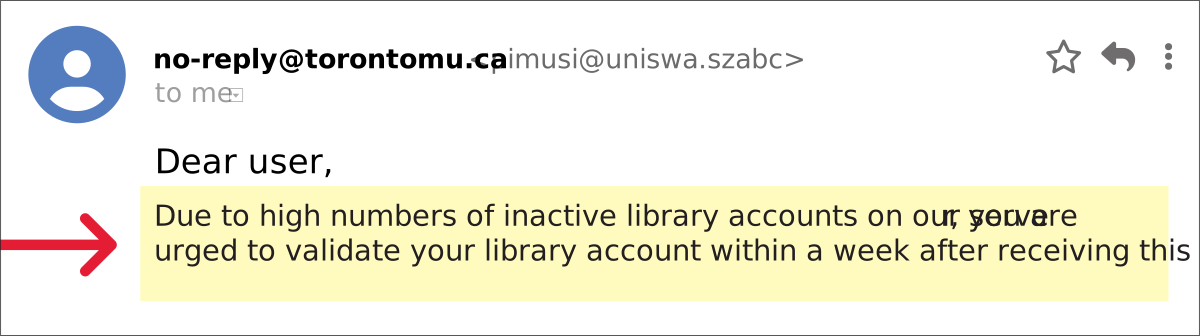
Here is part of an urgent request that included a link to a fake TMU login page:
Here’s another example of an urgent request:
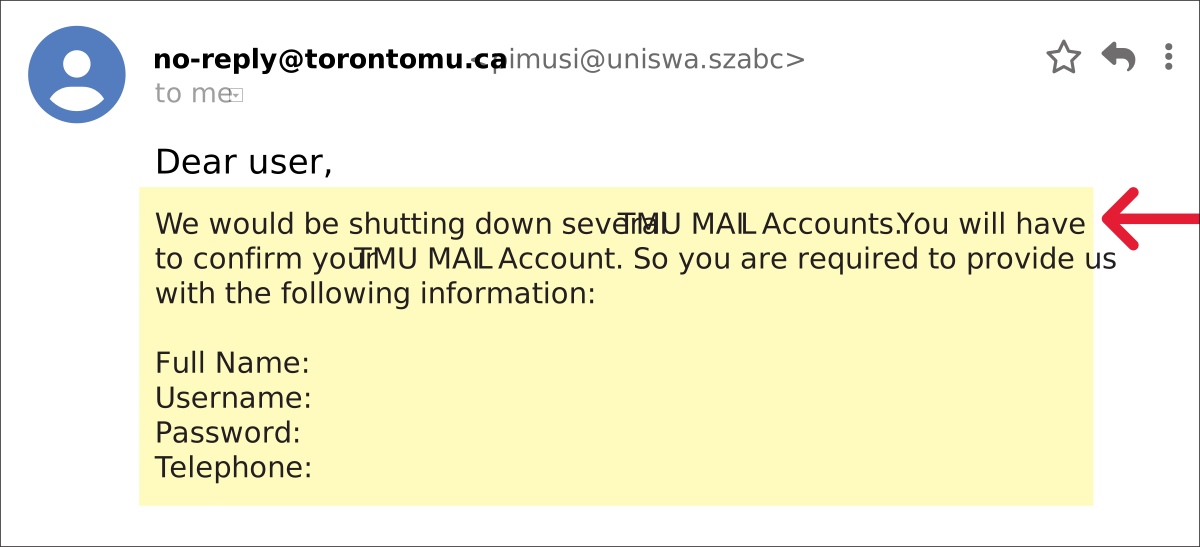
Both of these fake messages include tell-tale grammatical errors and demand you take action to avoid losing access to your account.
Hovering over a link with your mouse and carefully checking the URL is one of the best ways to detect a phishing email. If you are using a tablet or smartphone carefully press and hold the link, rather than tap, to reveal the true URL. Here's an example of a link that goes to a fake TMU login page hosted on a server in another country.
If you hover over the link without clicking you will see a very long URL (it may appear in the bottom-left of your browser) like this:
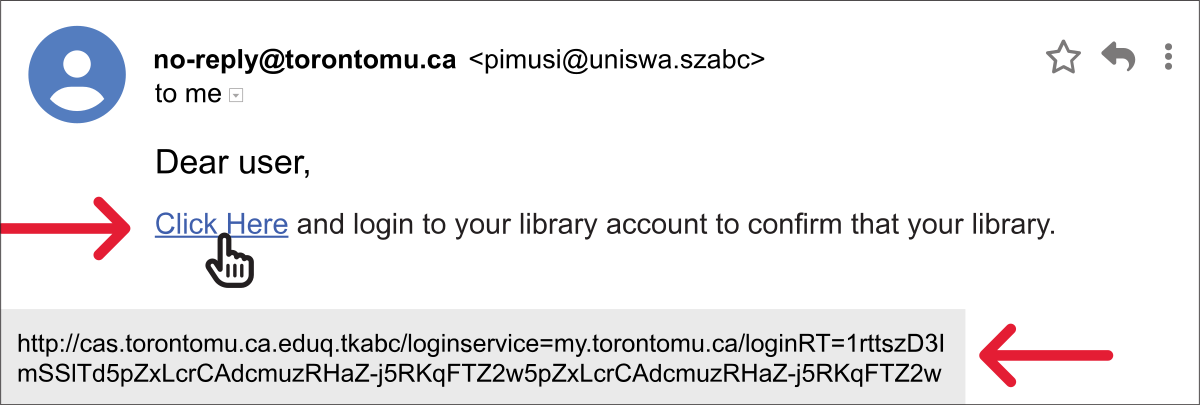
It may remind you of what you see in the location field of your browser when you log into the my.torontomu.ca portal. But it is not the same. Here is the valid address that you see when you login to my.torontomu.ca:
https://cas.torontomu.ca/login?service=https%3A%2F%2Fmy.torontomu.ca%2FLogin
Aside from the fact the fake link is longer, how can you tell which one is a link to a server at TMU and which one is not?
- The legitimate URL has a forward slash after cas.torontomu.ca/, the fake one has a forward slash after cas.torontomu.ca.eduq.tkabc/.
- Another give away is that the fake URL starts with http:// while the valid one starts with https://. TMU login pages will always start with the secure https://.
Here is a fake URL that has been well-crafted to look like a TMU address:
https://cas-torontomu.com/login?service=https%3A%2F%3Fmy.torontomu.ca%2FLogin
Notice how a hyphen has replaced the dot. A valid TMU host name that isn’t simply https://www.torontomu.ca must end with .torontomu.ca/
Let's look at two Fedex URLs. Which one takes you to a Fedex site and which one to somewhere more dangerous?
- https://www.fedex.com/apps/myprofile/loginandcontact/?locale=en_ca
- http://www.fedex.info.szabc/apps/myprofile/loginandcontact/?locale=en_ca
To tell the difference, locate the first forward slash after the https://:
- https://www.fedex.com/apps/myprofile/loginandcontact/?locale=en_ca
- http://www.fedex.info.szabc/apps/myprofile/loginandcontact/?locale=en_ca
The first link takes you to the real fedex.com site. The second just has Fedex in the name.
If you aren't sure about a link, type a link that you know is correct like my.torontomu.ca or fedex.com into the location bar of your browser instead of clicking.
How to reveal a true link
A crucial skill in defending against phishing is knowing how to check a link to reveal its true URL before clicking on it.
Links in phishing emails and on fake websites often don’t match what or who they claim to be. If a URL is unfamiliar or differs from what you expected, don’t click.

On a computer:
Hover your cursor over a link—the true URL will show at the bottom of your browser.

On a mobile device:
Press and hold the link (rather than tap) to preview the true address.
Phishing attacks aren’t just limited to your email inbox. Malicious actors can set up fake websites designed to steal your personal information or trick you into downloading viruses or malware.
Learn tips for spotting common website phishing tactics and strategies for protecting yourself when using the internet.
It’s easy for a hacker to create a fake website that mimics an official organization’s website via HTML and CSS coding. By posing as an organization’s official website, malicious hackers hope to steal your account information or infect your devices with viruses and malware.
Common traits of phishing websites:
- The website’s URL is very similar to an organization’s real website URL and only differs by a few letters or characters.
- The website includes typos or grammatical errors.
- The website is poorly formatted and images and logos are stretched or blurry.
- Upon visiting a website, a fake login window appears asking you to enter your account login details and passwords.
What about Google Apps links?
The TMU community makes extensive use of Google Apps including Drive, Calendar, and Groups. The URLs for these applications can be very long but they all start with a host name that ends with .google.com:
- https://drive.google.com/
- https://docs.google.com/
- https://calendar.google.com/
The host name always ends before the first forward slash with .google.com/
Some attackers have used personal Google accounts and Google Forms to try to get people to "login" to a Google Form. This is relatively easy to spot because Google Forms don't look like TMU's or Google's login screens. Google has even added a warning at the bottom of every Google Form that says: "Never submit passwords through Google Forms."
Phishers can use fake pop-ups and push notifications on fraudulent phishing websites to trick users into thinking that their device is infected with a virus or malware that needs to be removed or they risk having their device compromised.
Pop-ups
Common signs of pop-up phishing attempts include:
- Pop-up windows that automatically launch a new pop-up once the original is closed.
- Disguising pop-ups as real world system warnings and notifications you’d receive from an official internet browser or website.
Push notifications
By allowing push notifications on phishing websites, you can be:
- Redirected to other phishing websites, increasing the likelihood of accidentally downloading malware or being exposed to other phishing attempts.
- Encouraged to turn on notifications to download malware disguised as official software or files.
- Encouraged to turn on notifications to see more information on a fake website, increasing your risk of having your personal information tracked or stolen.
Browser-in-browser phishing attacks use simulated login windows with spoofed domains to trick people into providing their login credentials. Browser-in-browser phishing schemes commonly include fake single sign-on (SSO) authentication windows mimicking real SSO windows used by companies like Google or social media platforms to facilitate secure logins.
To accomplish this, hackers use programming languages like Javascript to replicate browser windows and URLs to mimic real world browsers, tricking users into sharing user names, email addresses and passwords.
How to spot a browser-in-browser phishing attempt
- The URL of the SSO window looks suspicious and does not match URLs from the organization’s official website.
- The SSO window includes spelling and grammatical errors.
- Images and logos on the SSO window are stretched or blurry.
- The link to the SSO window came from an unsecure source like an unknown email address or suspicious ad or website.
- You are unexpectedly prompted to enter your login credentials into an SSO window on a website that shouldn’t require you to login.
Stay alert: if you have multiple browser windows open connected to different accounts or cloud services, it can be difficult to determine which connection is prompting you to login through an SSO window.
If an SSO window looks suspicious, do not enter your login credentials and close the window.
Foundational to the internet are Hypertext Transfer Protocols, or HTTP, which is an internet communication protocol connecting a web client (your internet browser) and a server (software or hardware that interprets a website’s URL and delivers web page content). In essence, HTTP is the “method ” that allows your web browser and the server to communicate with one another.
Increasingly, websites are using HTTPS, or Hypertext Transfer Protocols Secure, which is a secure alternative to HTTP. By employing a security certificate, HTTPS websites encrypt any data being shared between a web client and a server, making it harder for hackers to gain access to your data.
As a general rule, always avoid visiting websites or providing personal or login information on websites with URLs beginning with just HTTP as they do not include any encryption or verification protocols.
Remember: HTTPS does not necessarily mean a website is safe
While websites with URLs beginning with HTTPS are typically thought to be secure, this does not necessarily mean that they’re all safe. Increasingly, phishing websites are obtaining real security certificates to trick victims into believing these websites are real and trustworthy.
When visiting an HTTPS website, always look out for common signs of phishing websites to ensure your data isn’t being compromised.
With more of us browsing the internet on our mobile phones and tablets, hackers are now creating fake websites formatted specifically to target users using mobile devices.
Websites for official organizations often have built-in mobile device support, with websites specifically reformatted to be accessed on phones or tablets. When accessing the internet via a mobile device, always remain vigilant and look out for warning signs of a phishing website.
Generative artificial intelligence (AI) has made it easier for hackers to quickly craft phishing emails that seem like they’re from someone you know. With AI introducing such ease, you might notice even more sophisticated phishing attacks in your inbox over time, and they’ll get harder to spot.
AI allows hackers to:
- Create phish personalized just for you, with details about your school, workplace or social accounts referenced.
- Replicate legitimate communications with great accuracy, from organizations you trust.
- Remove language barriers and respond to you instantly, automating phishing campaigns in a short amount of time and leading you to believe you’re talking to a real person.
- Any time an email makes a request of you, exercise a healthy skepticism and pause.
- Before clicking, check a link’s true URL by hovering your cursor over it—the true source will show at the bottom of your browser. On a mobile device, you can press and hold the link (rather than tap). If a URL is unfamiliar or differs from what you expected, don’t click.
- Trust your gut and verify the sender’s legitimacy by contacting the organization via a means you know to be legitimate.
QR code phishing
This form of cyber attack attempts to deceive you into scanning a QR code from an email or physical poster. Malicious QR codes allow hackers to:
- Steal data such as your login credentials, banking information or personal information.
- Infect your device with malware and potentially leave you vulnerable to ransomware.
- When you want to scan a QR code, pause to review the URL of the website you are being directed to before proceeding.
- Double check the destination address for clues to anything suspicious and check that the website domain is consistent with that of the organization. For instance, a QR code from a TMU department is unlikely to send you to a domain that does not end with "torontomu.ca".
Smishing, also known as SMS phishing, is a phishing tactic that targets your mobile devices by sending misleading texts posing as communications from a trusted organization.
Common traits of smishing attempts include:
- Texts from a phone number that is unknown to you.
- Texts with typos or grammatical errors.
- Messages containing an urgent request for personal information like login information or bank account details.
- Texts that require immediate action to avoid a problem like retaining access to an account or rescheduling delivery of a package.
- Messages that ask you to click a link or download a file of vague origins.
- Texts offering you something that sounds too good to be true with little to no action on your part.
- Check the authenticity of the sender’s phone number by visiting the website of the organization they claim to be from—if their number is listed, it’s more likely to be genuine.
- Check each link before clicking by pressing and holding the link (rather than tap) to reveal the URL. If the URL is unfamiliar or differs from what you expected, don’t click.
- Contact the organization directly via email or publicly-listed phone numbers to confirm if the text came from them.
- Verify your personal records to confirm if you have any services or subscriptions from the company in question.
- Ask yourself, “Would this company contact me via text message?”.
If you suspect that a text is a smish, don’t respond to the message and avoid clicking any suspicious links. Always block the number and delete the text to avoid further smishing attempts.
Vishing, also known as voice phishing, is another phishing tactic that targets you via mobile devices using live agents or automated calls claiming to be from a trusted organization. Vishing attacks usually take one of three forms:
AI voice cloning
Artificial intelligence (AI) has made it possible to replicate a person’s voice using a few seconds of audio found in, for example, a voicemail greeting or video posted to social media. Cybercriminals then identify your friends or family members and use the AI-cloned voice to stage a phone call asking for money or other personal details that can be used to defraud you.
Cold calls
In this scenario, you’ll receive a phone call from an unknown number claiming to be from an official organization requesting personal information or remote access to your device to solve a fake issue with an account or device.
Misleading ads and websites
Malicious actors may create fake online ads or websites that encourage you to call a number to sign-up for or purchase a fake service or product.
Common traits of vishing attempts
- The calls come from a phone number that’s unknown to you.
- The caller makes an urgent request for personal information or remote access to your device to resolve an issue like canceling a subscription or removing malware from your device.
- The caller makes use of social engineering tactics like keeping you on the call to gain your trust.
- The caller offers you something that sounds too good to be true with little to no action on your part.
- Ads or websites with typos or grammatical errors encouraging you to call a phone number to sign up for a service or resolve an imaginary issue with your device.
AI voice cloning
- Listen for unnatural pauses or robotic-sounding speech.
- Question unexpected requests for personal or financial information.
- Verify the caller's identity by contacting them through a different mode of communication.
- Stay calm and avoid succumbing to pressure tactics.
- Check for inconsistencies in the caller's story.
Cold calls and misleading ads or websites
- If the caller or number are unknown to you, end the call without providing personal information or granting remote access to your device.
- Check the authenticity of the caller’s phone number by visiting the official website of the organization they claim to be from and verifying if their number is listed.
- Contact the organization directly via email or publicly-listed phone numbers to confirm if the call came from them.
- Verify your personal records to confirm if you have any services or subscriptions from the company in question.
- Ask yourself, “Would this company contact me over the phone?”.
If you suspect that a call is a vish, always block and delete the number to avoid further vishing attempts.
You can prevent future vishing attempts by registering your phone number with the Government of Canada’s National Do Not Call List for telemarketers (external link) . By registering your number, many telemarketers will be prevented from cold calling you, although it’s important to remember that this will not protect you from all vishing attacks.