Troubleshooting
There are two possibilities as to why a login error appears:
- If there's a SAML error, check the username and ensure it is correct. The SAML error looks like this:
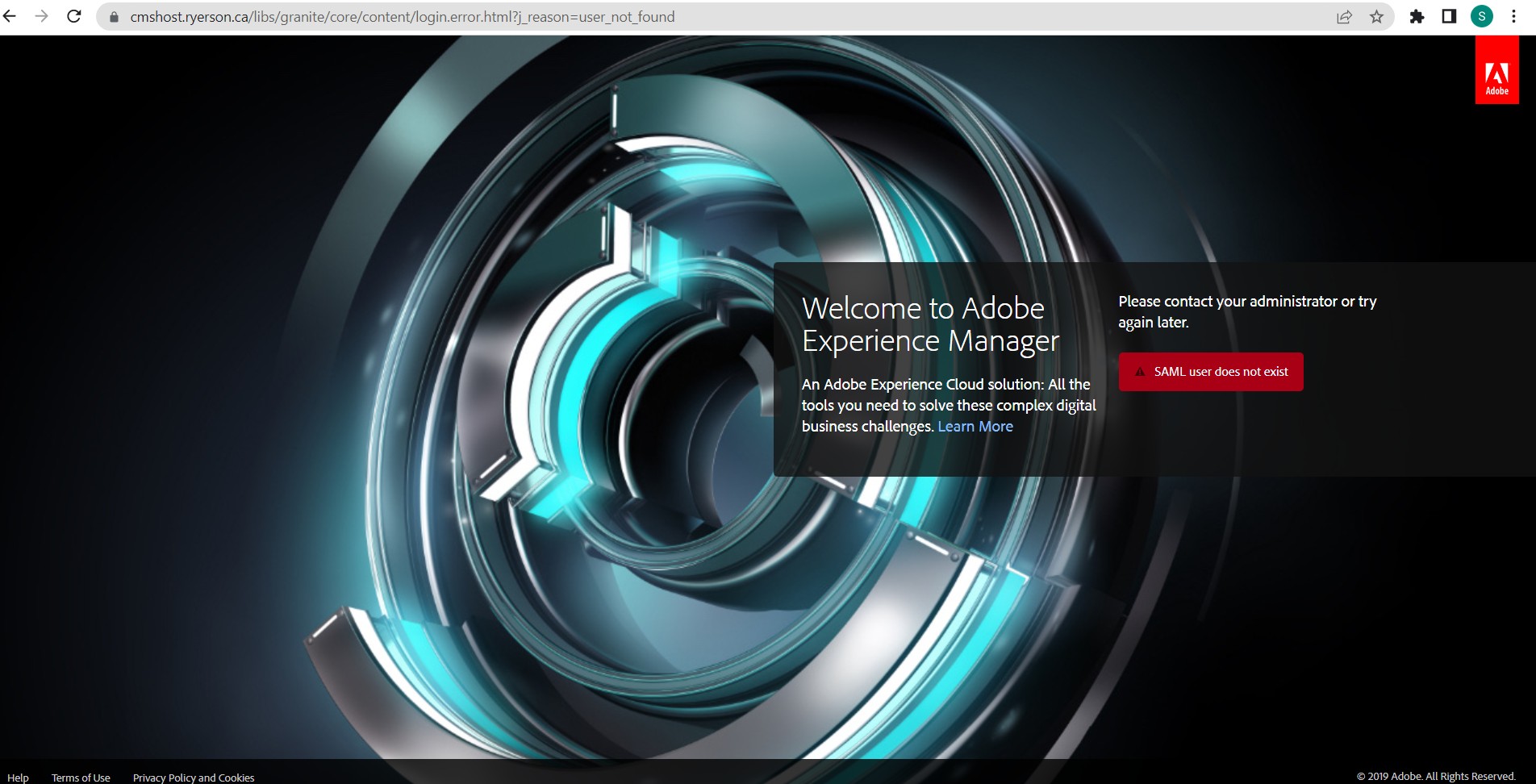
- Or if a message indicates that VPN isn't running, check that VPN is running using your staff username and password. Below is a screencap of this error:
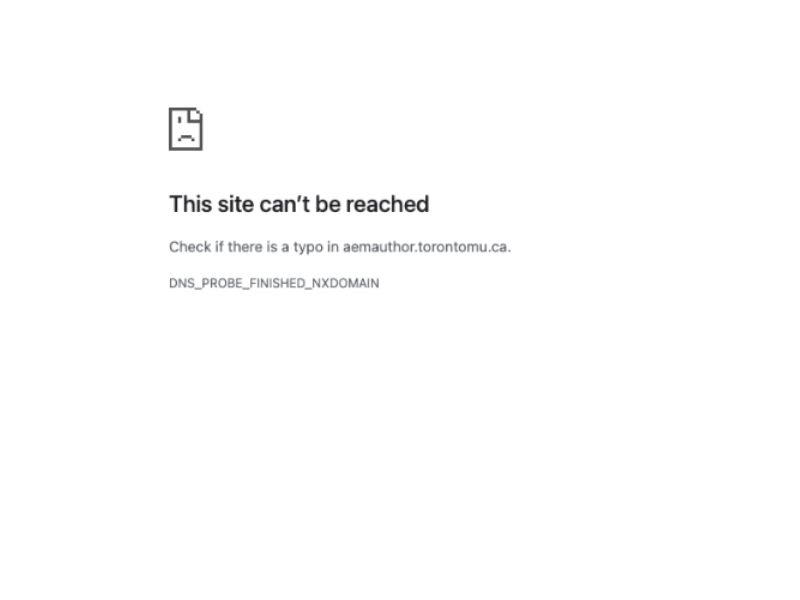
If a staff member or student staff changes their email address and username after they have been added to AEM, they will need to send a request to add their new username.
FAQs
Chrome, Firefox, and Safari are the recommended browsers.
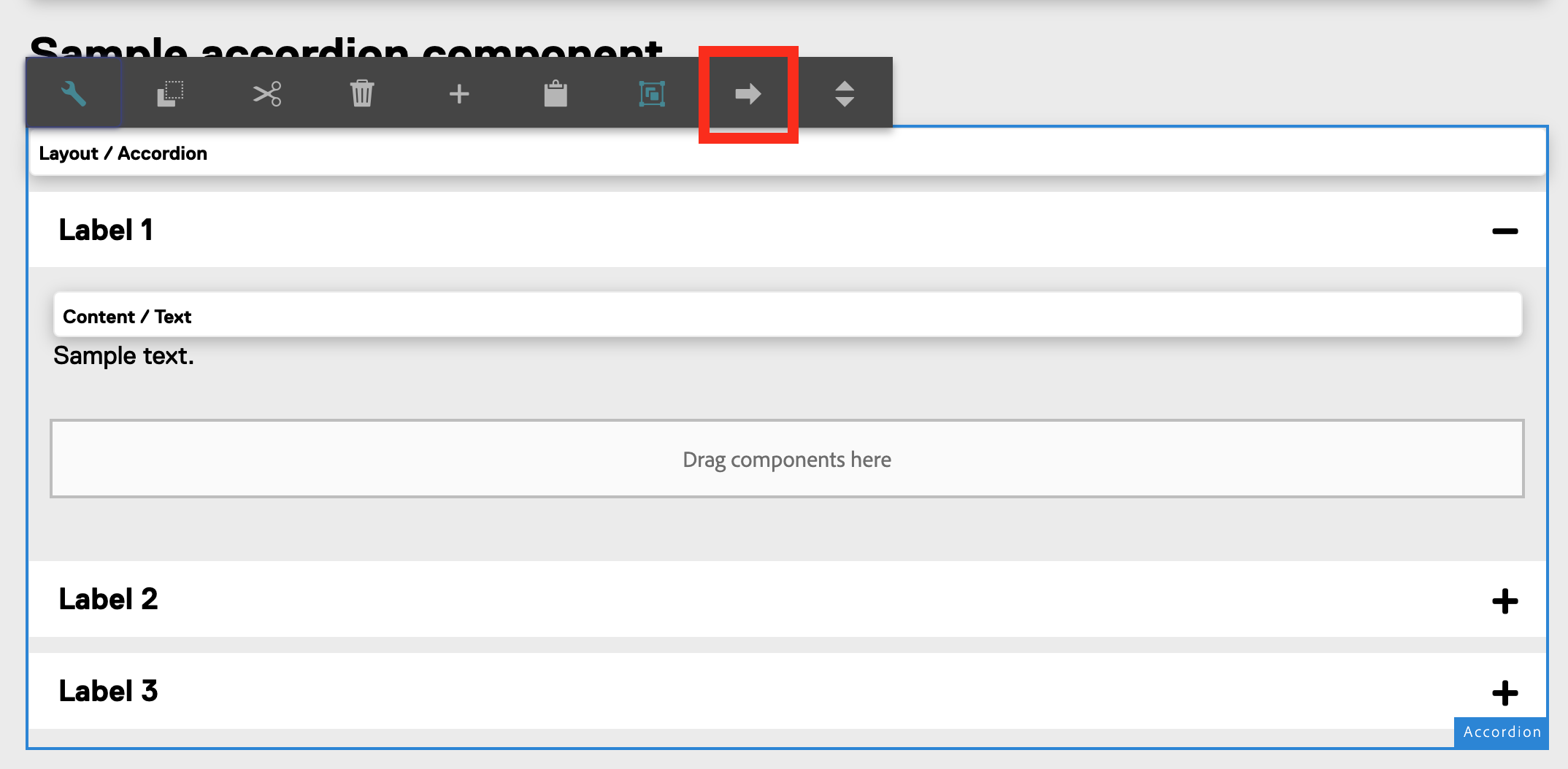
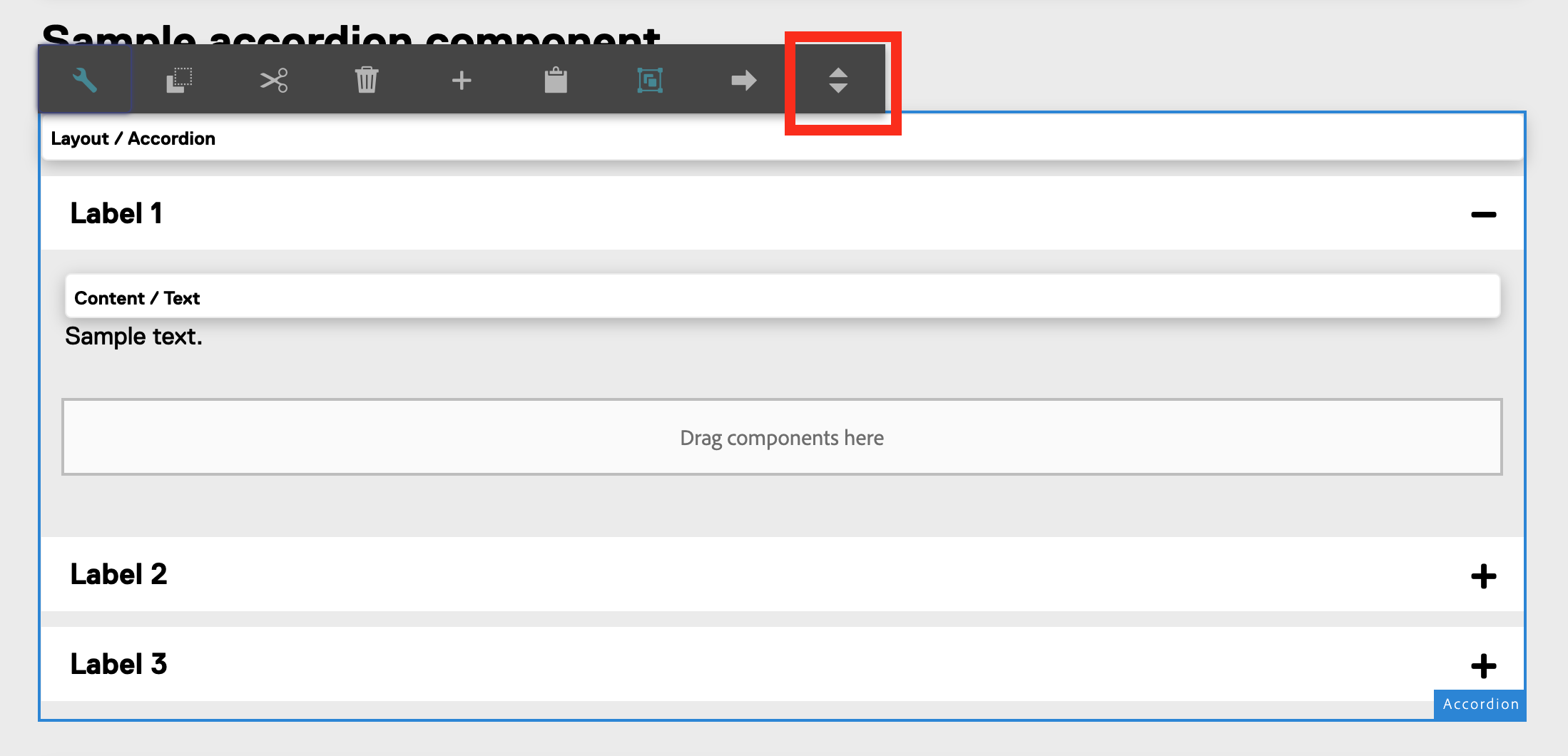
- Select the Accordion component to edit
- Select the left or right buttons OR Select the "Open All/Close All" button
- View the Accordion page for more information
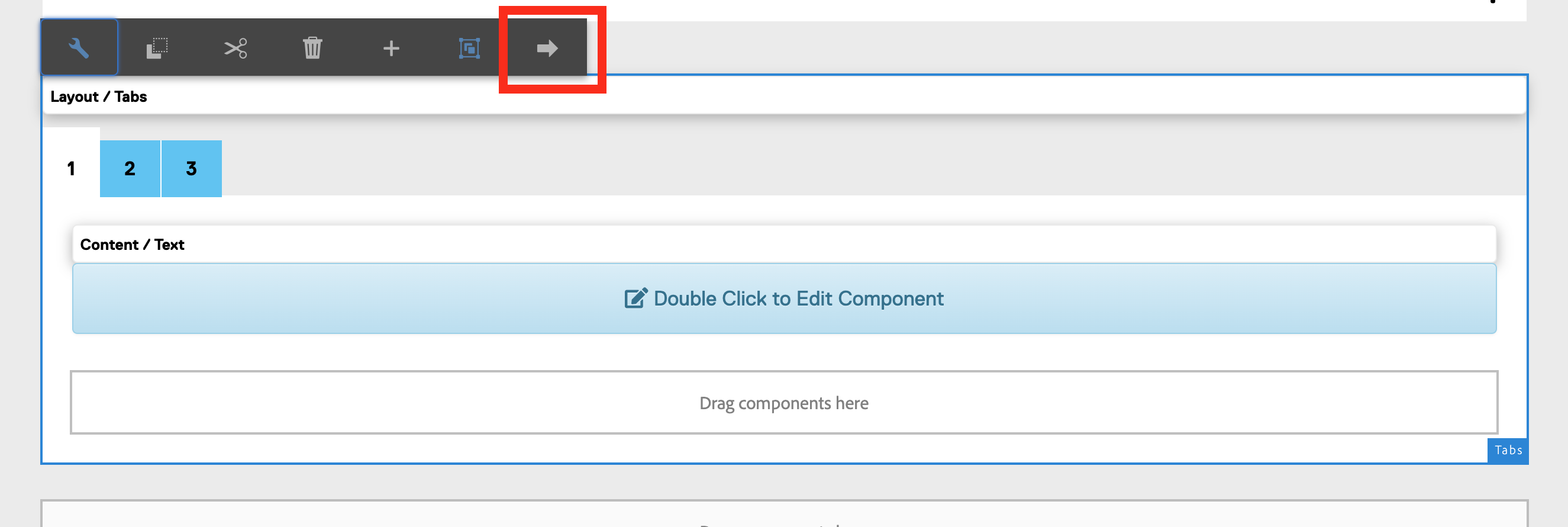
- Select the Tabs component to edit
- Select the left or right buttons to go between the different tabs
- View the Tabs page for more information
If you rename a file and the name doesn't change, refresh the page.
Activation is now called 'Publish.'
- To publish a page, go to Sites Console> select the thumbnail of a file> select 'Publish' in the toolbar
- In an open page, select the page information icon the top left corner> select 'Publish' in the dropdown.
There are three options to do this:
- Publish a root / main page and that publishes all pages within.
- Press and hold the shift key on your keyboard and right click on all the necessary files (so that checkmark appears over thumbnails) and select Quick Publish or Manage Publication.
- Go to Touch start page (Navigation panel) > Select Tools> Deployment> Replication> Activate Tree > On 'Activate Tree' page, navigate to your website path via: /content/ryerson/your-site name > Select OK
You will need to repeat this process for the site's DAM assets. Navigate to /content/dam/your-site-name
If you don't currently have VPN, find out which version you need to connect on or off campus.
If you are having technical issues with VPN, please email help@torontomu.ca
You do not have access to AEM while doing the training, unless you have requested access to a training sandbox, in which case you will have access to a training sandbox AFTER you pass the D2L training.