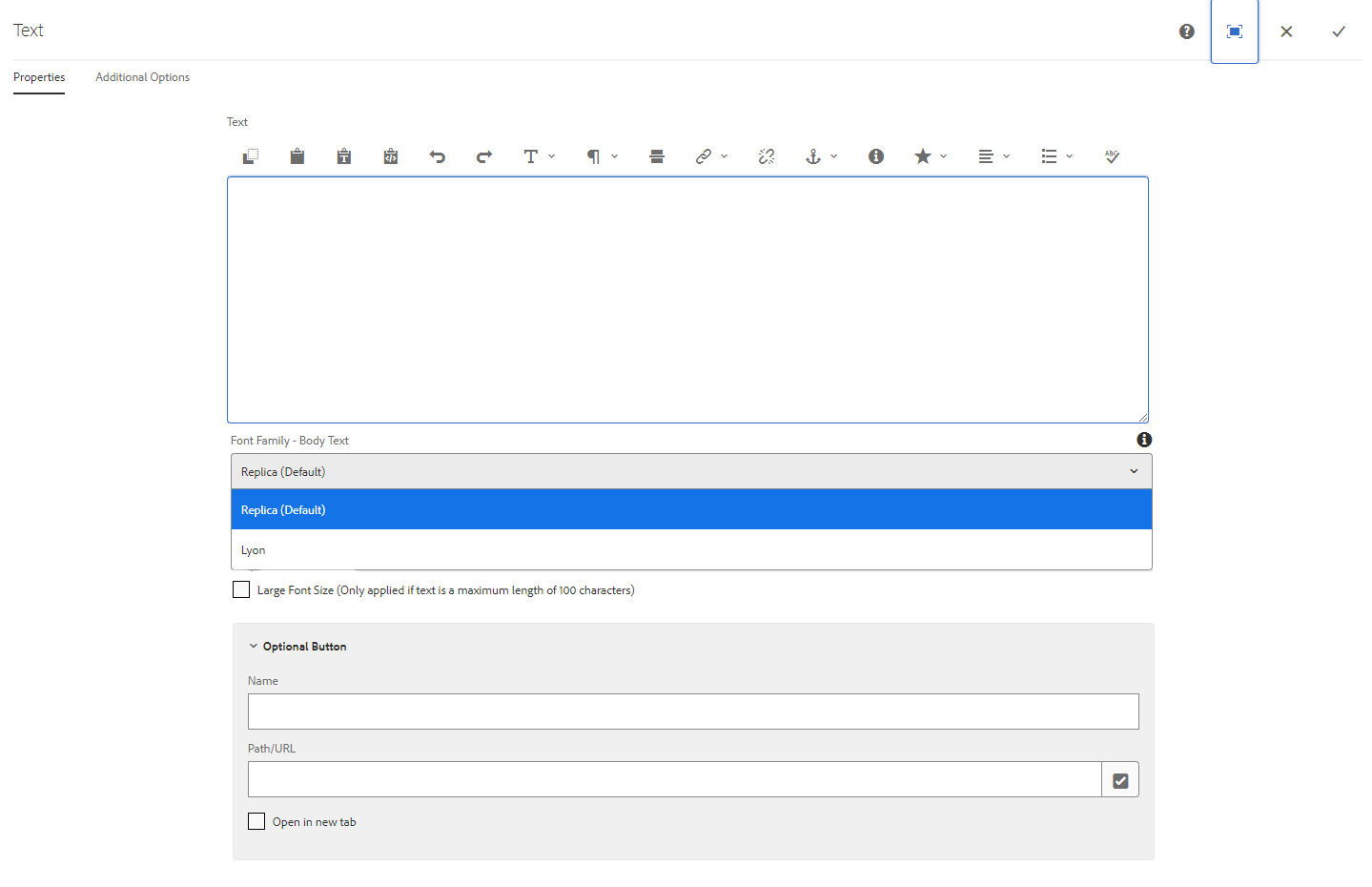
Text
The Text component allows you to add text to your web page.
- Found in Side Panel > Components > Text
- Functions: Copy, paste, undo, redo, formatting, create links, special characters and spell check
- Fonts available: Replica, Lyon
- Large font size (maximum character length of 100 characters)
- Styles available:
- Publication List
- White background option
- Required content: text
- Optional fields: optional button
- Custom Colours Applicable: none
- Select the "Side Panel" button in the top left corner of open page
- Select the Components button on the left
- Drag and drop the Text component onto the page
- Double click to edit
- Add text
- Font family body text options: Replica (default) and Lyon
- Optional: Use the toolbar to customize your content, such as adding headings, bold, links, bulleted lists, etc.
- Optional large font: Large font selection available for up to 100 characters
- Select the checkmark when complete
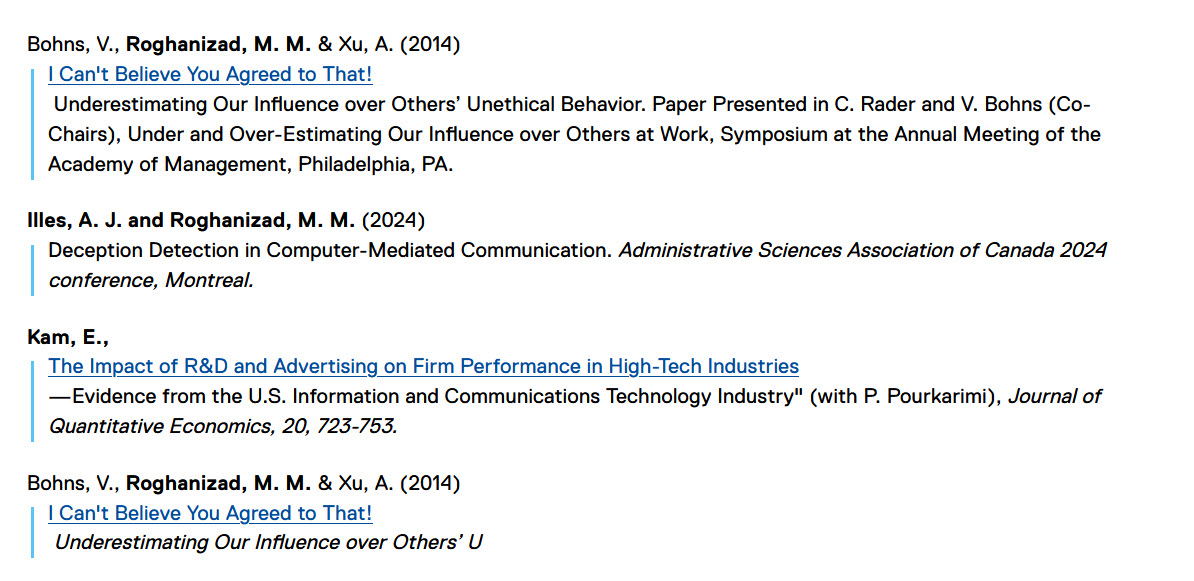
Adding a Publication List to a page
1. Add text component
2. Open text component, enter content in the following format.
Important: Please add a link of any kind to the Link of any kind to the
"Link goes here" line:
Author Name (2026). [line break using shift-Enter]
Link goes here [line break using shift-Enter]
Publication information goes here.
3. Select the content above and click either "Bullet List" or "Numbered
List" to make it a list item. It should look as shown in the following
screen capture:
4. In the Additional Options tab of the Text component, check "Apply
Publication List Formatting". Click Done.
5. To add an additional Publication List item, simply edit the Text
component, add a new item to the list created above, and follow the
instructions from step 2.
Publication List Style sample below:
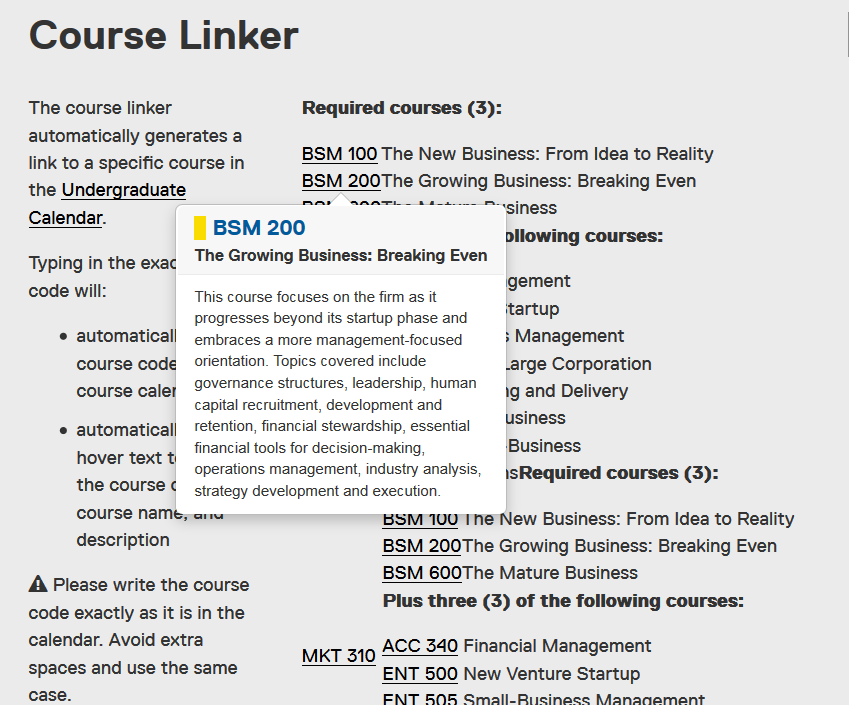
The course linker automatically generates a link to a specific course in the current Undergraduate Calendar.
Typing in the exact course code will:
- automatically link the course code to the course calendar
- automatically create hover text to show the course code, course name, and description
Please write the course code exactly as it is in the calendar. Avoid extra spaces and use the same case.
For example, type CMN 100 and not cmn 100
This feature is available in the following components: