Wireless Configuration Instructions for Android

These instructions will configure your wireless connection to the TMU wireless network. It will allow you to authenticate and browse using a higher level of security and protection. It will also automatically log you in after your first connection – no need to login and authenticate every time you come onto campus.
Note: These instructions will assume you have Android version 6.0 or above on your device.
TMU Connection Instructions
From the home screen swipe down from the top of the screen, then press and hold the wireless icon to open the wireless connections
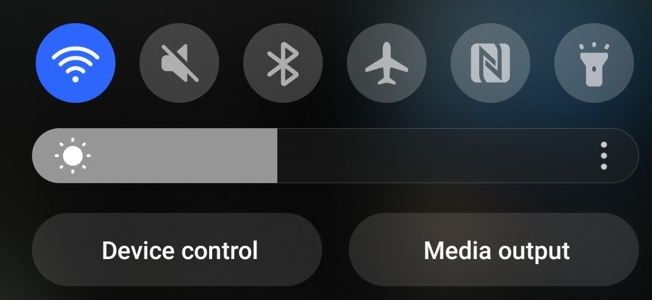
When the available networks appear, select on TMU

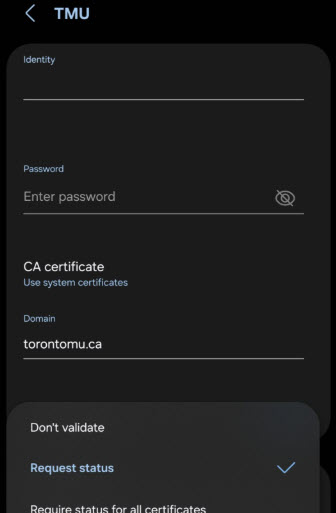
The network configuration for TMU will open, please enter the following:
Identity: Your torontomu.ca username, this is the same as your toromtomu.ca email address – your student number will not work.
Password: Your torontomu.ca password
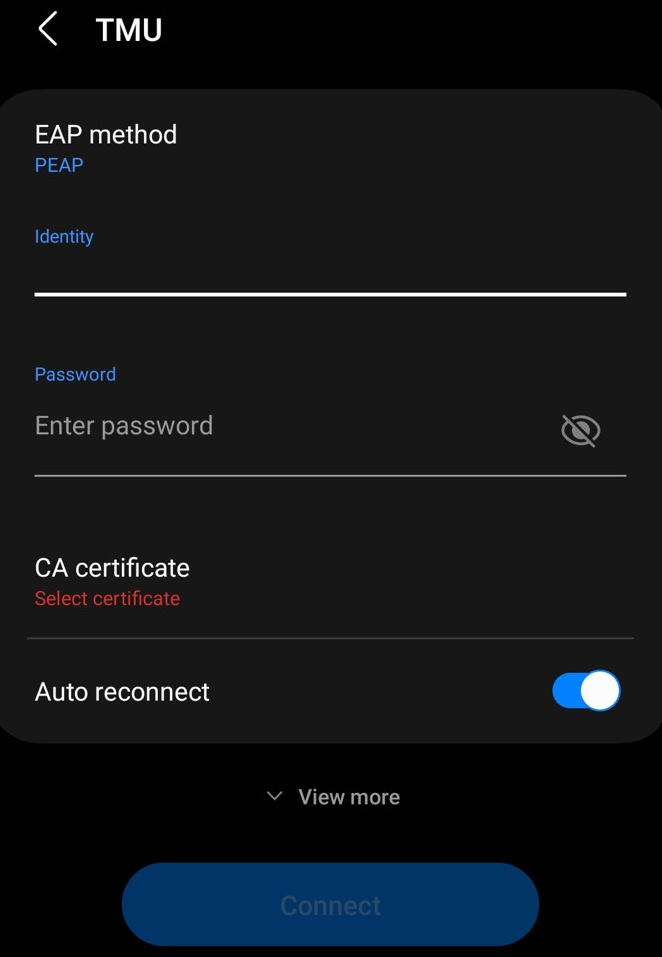
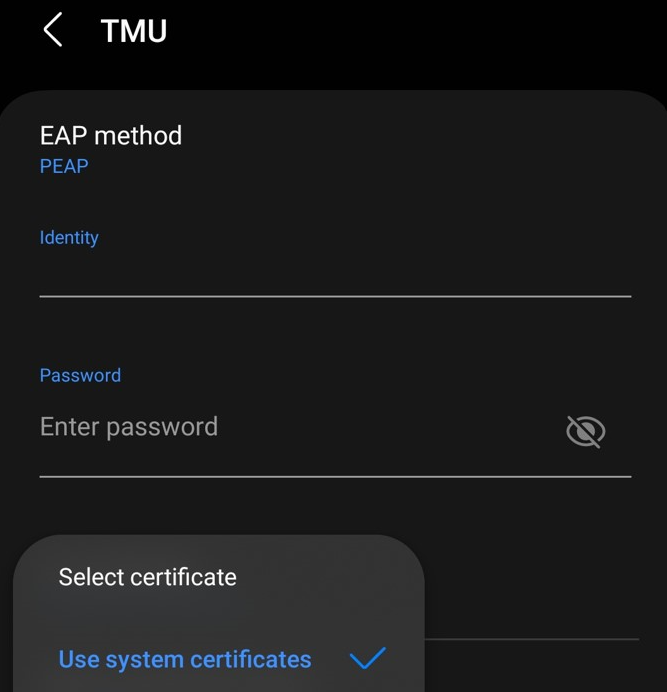
Select on CA certificate and from the drop down menu, select Use system certificates.
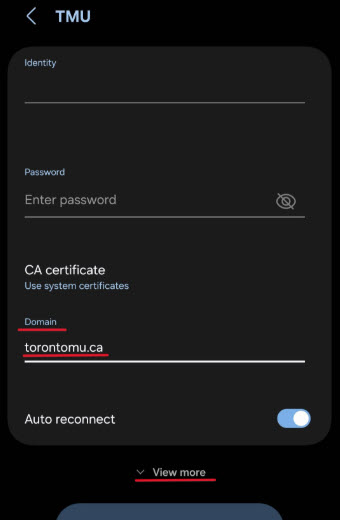
Please enter torontomu.ca in the Domain field, and then click on View more to expand the settings menu.
Please click on Online Certificate Status and select Request status, then scroll down to the bottom of the settings menu and click Connect.
If you encounter any issues connecting, please contact wireless@torontomu.ca