Search & Replace Tool Released
The following is a list of topics we want to communicate to you at this time:
- Release of the Search & Replace Tool (SRT)
- Purpose of the SRT
- Instructions on how to use SRT
- Before You Begin
- What to Avoid!!
- How to Login & Find the tool
- Replacing ‘Ryerson’ and ‘Ryerson University’ - things to note
1. The Search and Replace Tool (SRT) has been released to both Author Development and Author Production. The tool is available to all trained AEM authors and only applicable to AEM content.
2. The purpose of the tool is to help AEM authors locate Ryerson branded terms and custom terms in their website content and replace them with updated terminology (See University Relations’ language guidelines).
The SRT consists of three Consoles:
- Search and Replace Browser
- Replacement Queue
- Replacement requests from other AEM Authors

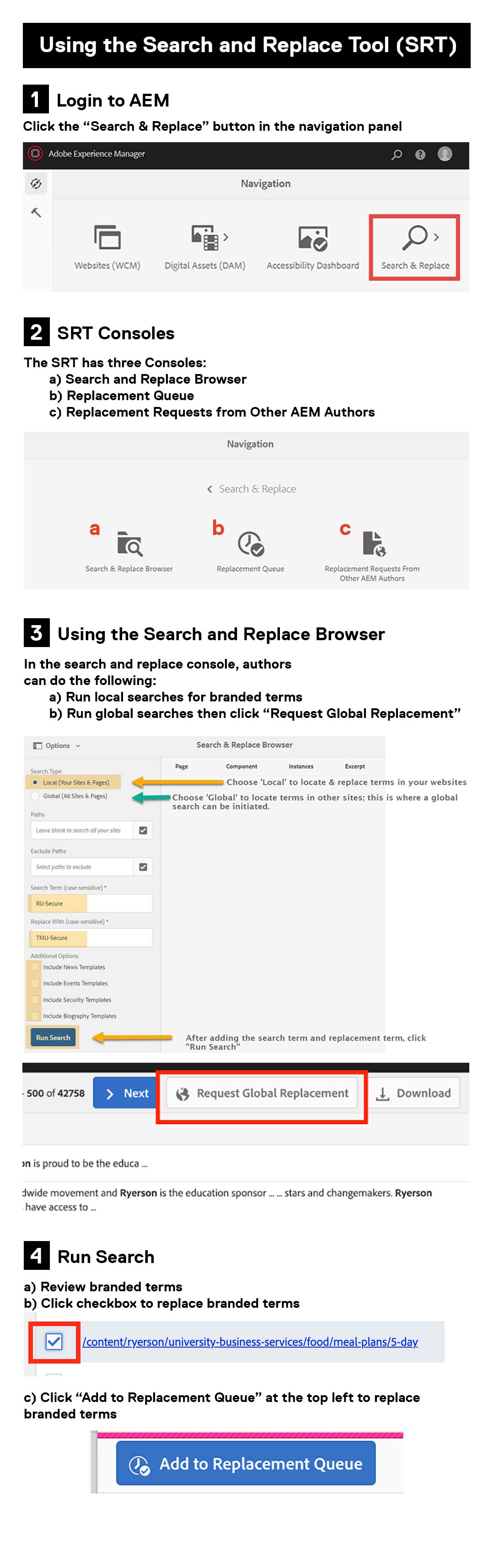
3. Instructions on how to use SRT
a) Video (external link)
b) Step-by-step instructions
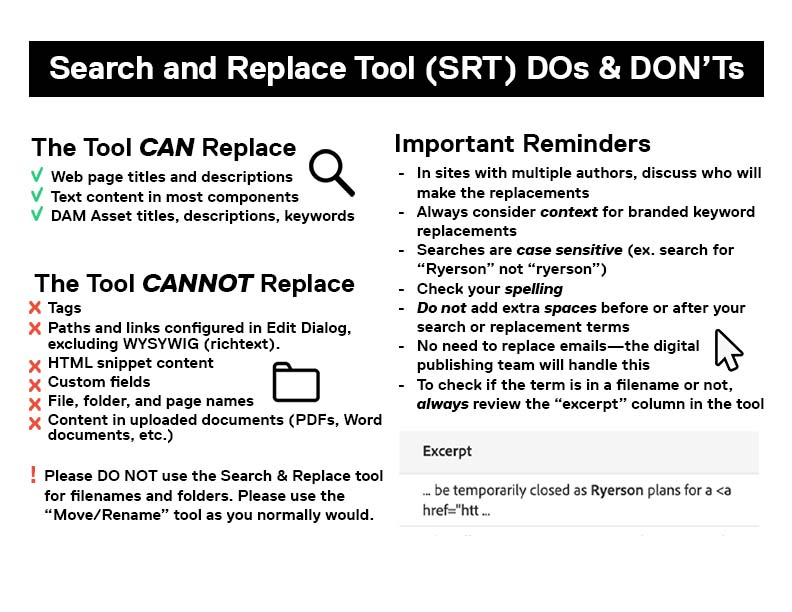
C) (image file) How-To Infographic & (image file) Dos & Don’ts
4. Before you begin
- In sites with multiple authors, we recommend that teams discuss who will make replacements
- Context must be considered for branded keyword replacements. Please review the University Relations language guidelines to ensure the appropriate replacements for each excerpt where a term is found. There may be multiple replacements that are applicable.
- Searches are case sensitive; case sensitivity must be maintained in search and replacements. e.g. search “Ryerson”, not ryerson
- Check the spelling of your search and replacement terms
- Do not add extra spaces before or after search or replacement terms
- Always review the “excerpt” column in the tool to provide context for what you will be replacing
5. What to Avoid!!
- Please DO NOT use the Search & Replace tool to rename filenames and folders; please use the “Move/Rename” tool as you normally would.
- DO NOT search lowercase ‘ryerson’ which will be found in thousands of absolute paths /content/ryerson/
- Emails (Digital Pub will manage this centrally)
- Tags (Digital Pub will manage this centrally)
- List components using tags
- Reference component paths
- HTML snippet content
- Alert links
- Captcha
- customFields
6. How to Login
- Direct Link: Search & Replacement Tool
- Via AEM Navigation by clicking on the Adobe Experience Manager text

7. Replacing ‘Ryerson’ and ‘Ryerson University’
- Run search and replacements for ‘Ryerson University’ before you search and replace the single term ‘Ryerson’.
- Replacing ‘Ryerson’ first will result in ‘University’ being orphaned from instances of ‘Ryerson University’.
Digital Publishing