Quizzes: Prepare to take a quiz

Your instructor may make use of the Quizzes tool for a number of purposes, which could include a practice test, a pop quiz, weekly quiz, mid-term or final exam to count toward your final grade.
Quizzes can include a wide variety of types of questions, such as multiple-choice, short answer, essay, or even mathematical questions. Your instructor may choose to make your grade available to you right away or at a later date. They may or may not allow you to see how you performed on individual questions, depending on their discretion.
Your instructor might create a quiz where all students must start and end at the same time, or they may provide a wider window of time when you can complete a quiz. Make sure to pay attention to any instructions they provide, to ensure you don’t jeopardize your grade.
Try a sample quiz in the Brightspace sample shell for students.
Be aware that if you are logged into Brightspace, and leave it unattended for a while, and then try to perform an important or deadline-dependent task, such as submitting a quiz, you may encounter an error message, as your login has timed out. Try logging out and then back in to Brightspace before performing any important tasks, to ensure that you have an active connection.
Set up your space for success!
- always use a recommended web browser updated to the most recent version (Google Chrome or Mozilla Firefox)
- make sure cookies and pop-ups are enabled on your web browser
- when possible, use a hard-wired internet connection instead of wifi
- when possible, use a desktop or laptop computer instead of a mobile device
- when possible, limit the other activities using your internet bandwidth
Before you begin...
- clear your cache and restart your computer
- don't have other programs running on your computer while completing a test
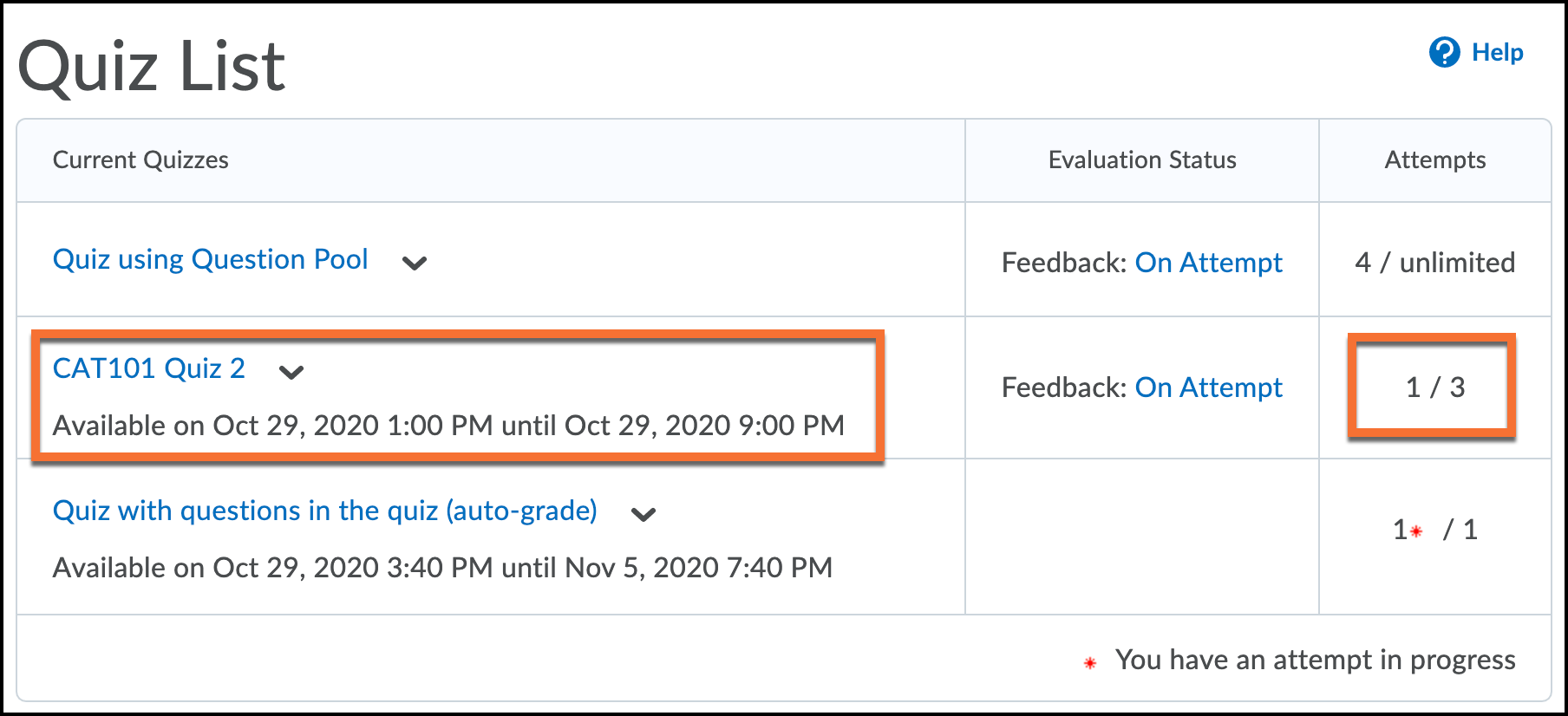
Find the quiz
- To access all available quizzes, find the Quiz tool in the course menu, under Assessment > Quizzes.
- Or, possibly, in the Content tool, click on the quiz link in a content module
Click the title of the quiz to enter -- but be sure to make note of some information before you start.
- Quiz availability dates will be listed below the title.
- The quiz due date & time will be listed below the title (if there is one).
- The number of attempts you are allowed will be listed in a column to the right.
Begin the quiz at the beginning of the availability window, whenever possible!
Make note of the availability start and end dates - these control when you will be able to enter the quiz.
Is there a due date and time? If so, make note - your instructor may penalize submissions made after this time.
It's best to begin a quiz right at the beginning of the availability window. If you lose access to the quiz (because your browser crashes, or your internet disconnects), you will still be able to re-enter as long as it hasn't passed the availability end date and time AND as long as your time limit hasn't run out.
If you begin the quiz closer to the end of that availability window, your ability to re-enter will be limited.
If the quiz is a “synchronous” quiz, where all students are expected to start and end at the same time, keep in mind that if you start late, you will have less time to complete the quiz.
How many attempts do you have?
Most quizzes will only allow you to attempt one time.
For some quizzes, your instructor will allow you to have multiple attempts.
Before you begin, take a look at how many attempts are permitted, and how many you have already completed. A red asterisk shows an attempt that was started, but not completed.
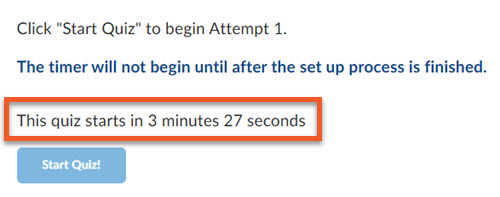
Quiz instructions
Read the quiz instructions carefully, and when you’re ready to begin, click Start Quiz! Your quiz will display in full screen, with no course menu.
If your quiz was set up as a “synchronous” quiz, meaning that all students are expected to start and end at the same time (similar to in-person tests), you will see a 5-minute countdown timer above the Start Quiz! button, just before the official start time. The button will not be clickable until the start time.
During the quiz, if the countdown timer in the upper-right of the screen makes you uncomfortable, you can click to hide/unhide it.
Saving your answers
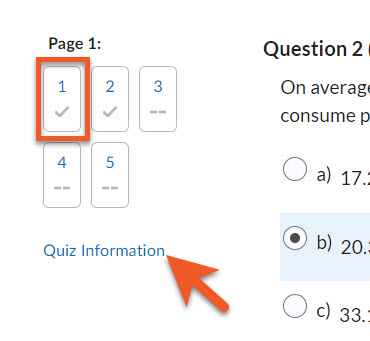
Brightspace automatically saves your responses shortly after you answer each question (ie. true/false or multiple choice questions), and "written response" questions (ie. write a paragraph or essay) save once every minute, so even if you experience a problem with your device, most of your work is safe. In the left column, you can see that your answers have been saved by noting a checkmark below the question number.
Don't click too quickly between pages! Wait until you see that your answer has been "saved" before you click to move to the next page. (See below for details on why this is important)
When moving to the next page, pay attention to whether you see a message stating that you will not be able to return to previous pages. Some quizzes are set up so that you can only move forward through pages.
Also, if, at any time during the quiz, you wish to review the instructions, in the left column, click on Quiz Information, to see this information in a popup window.
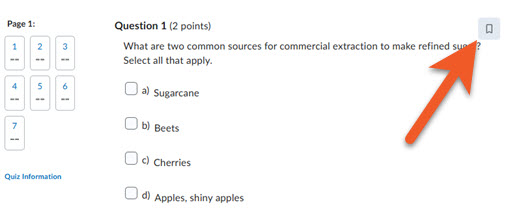
Bookmark a question that you want to review or attempt later
If you're unsure about a question, and want to circle back to review your answer, or simply attempt it later, after you've answered some easier questions, you can bookmark that question.
To the upper-right of the question, click on the bookmark icon.
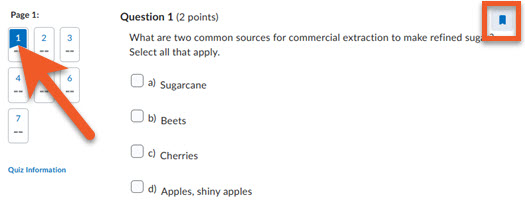
You will now see that the icon appears as a solid blue, and in the question menu on the left, you can also see that question indicated with a blue bookmark icon.
When you want to return to that question from anywhere else in the quiz, simply click on the question number.
If you want to remove a bookmark from a question, go to that question, and click on the bookmark again. It will return to the original outlined bookmark symbol, and the blue indicator will disappear from the question menu.
NOTE: If your instructor has set up their quiz to prevent moving backwards through pages in the quiz, please do NOT use this, as you will not be able to return to your bookmarked question.
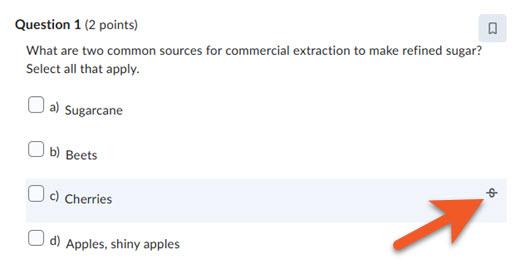
Eliminate possible answers, to help you decide
For certain question types, such as true/false, multiple choice, or multi-select (more than one answer can be selected), you can use a visual process of elimination to rule out answer options that are obviously incorrect.
To the right of an answer, click on the strikethrough icon.
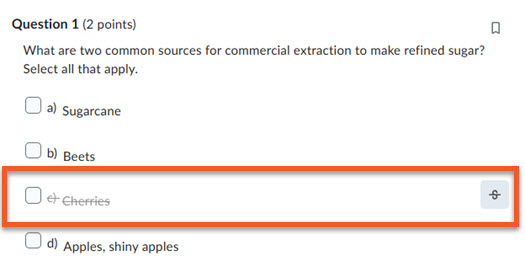
You can now see that answer option is crossed out. This makes it easier to focus on the other answer options, to determine which you wish to choose.
If you change your mind, you can click on the strikethrough icon again, to remove this annotation.
NOTE: If your instructor has set up their quiz to prevent moving backwards through pages in the quiz, please do NOT use this, as you will not be able to return to your annotated question answers.
Submitting your quiz attempt
Please note that your instructor may have set up your quiz so that it is automatically submitted when time runs out. You should see a very brief warning message appear at the bottom of the page at 5 minutes and 1 minute left on the timer.
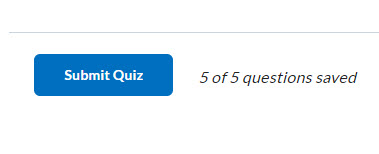
If you finish early or your quiz is not set up to auto-submit, when you’re done answering all questions, click the Submit Quiz button.
Keep in mind that it is several steps to submit your quiz attempt, and you must finish all of them to finalize your submission.
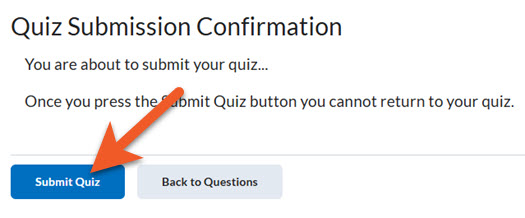
On the next page, review the details. If there is still time remaining, and the quiz settings permit it, you may see warnings, such as a note about unanswered questions.
When you are ready, click the second Submit Quiz button to finally submit the quiz.
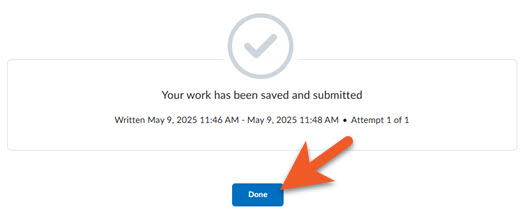
Look for confirmation that your quiz was successfully submitted. Click on Done to exit the Quiz experience.
NOTE: You are responsible for ensuring that you have properly submitted your quiz. If you have not fully submitted your quiz, your instructor may not see it, and your quiz may not be graded.
Wait! Once you've entered an answer to a question, wait until you see that your answer has been "Saved" before trying to go to the next page.
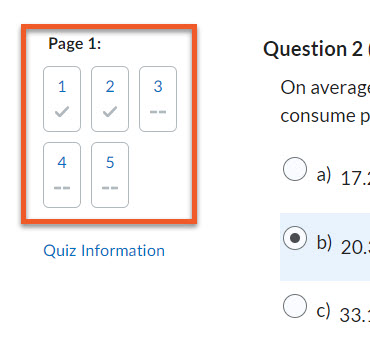
Wait! Once you've entered an answer to a question, wait until you see that your answer has been "Saved" before trying to go to the next page.
In the left column, you can see that your answers have been saved by noting a checkmark below the question number.

- Try to stay aware of how much time is left in your quiz, by looking at the timer in the upper-right of the page. Some quizzes are set to auto-submit your work when time runs out, so if you are caught unaware, you may not realize that the test is over.
- Be aware that some quizzes are “synchronous”, meaning that the timer starts at a particular time for everyone, and ends at the same time for everyone. If you join the quiz late, you will have less time to write the quiz.
- If you get kicked out (connection dropped, computer crashed, etc), you should be able to resume the quiz where you left off, as long as the countdown has not reached zero AND you have not passed the end of the quiz availability.
- Keep in mind that the countdown timer continues to count down from when you first began the quiz, so try to rejoin as quickly as possible.
- If you are able to login to D2L, but unable to resume the test, contact your instructor. Include screenshots of any error messages you encountered. Please note that the Brightspace support teams aren't authorized to give you access to quizzes - only your instructor is permitted to do this.
This may be by design.
It is possible to have quizzes that do not permit you to go backwards to questions or pages in the quiz that you have already reviewed.
There should be a warning in the quiz, in various places, to let you know that you won't be able to move backward. This often appears if you proceed to the next page of questions - it will warn you that you won't be able to return.
Please note that if your instructor has set up the quiz to prevent moving backwards, you need to also avoid using the question annotations to bookmark questions (to return to), OR the "add strikethrough" functionality to rule out answers, as you will not be able to return to those questions, once you've moved off that page.