Resources for learning

This section contains a collection of resources to prepare for using Brightspace in your course.
On this page:
Some courses are available for anyone to try out, using the "Discover" feature in D2L Brightspace. These may be sample Brightspace courses, or open training modules.
Highlights:
- Brightspace sample course - intended to provide students with a way to try a sample quiz before using Brightspace quizzes to complete a real test or exam.
To self-enroll in a course using "Discover":
- Log in to D2L Brightspace.
- From the homepage, click "Tools" in the top menu bar, then select "Discover" from the dropdown menu.
- Click on the name of the course you want to access (i.e. "Brightspace sample course").
- Review the Course Description and click the "Enroll in Course" to enroll.
- To access the course: either click the "Open Course" button on this page, OR go to your D2L Brightspace homepage, where the course will be listed under "My Courses".
Please note that this is only an option for courses you self-enrolled into through "Discover". If someone else enrolled you in the course, you may not be able to un-enroll yourself.
First, look at the homepage of the shell you want to remove - there may be a direct link to the Discover page for the shell, where you can easily unenroll yourself.
If not... proceed with the following instructions.
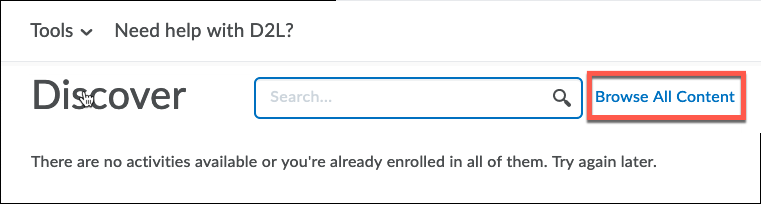
Locate courses you've self-enrolled into through "Discover":
- From the D2L Brightspace homepage, click "Tools" in the top menu bar, then select "Discover" from the dropdown menu.
- In the Discover tool, click "Browse All Content" (to the right of the search field).
- Look to the right again, and click where it says "Sort:...", then select "Already enrolled".
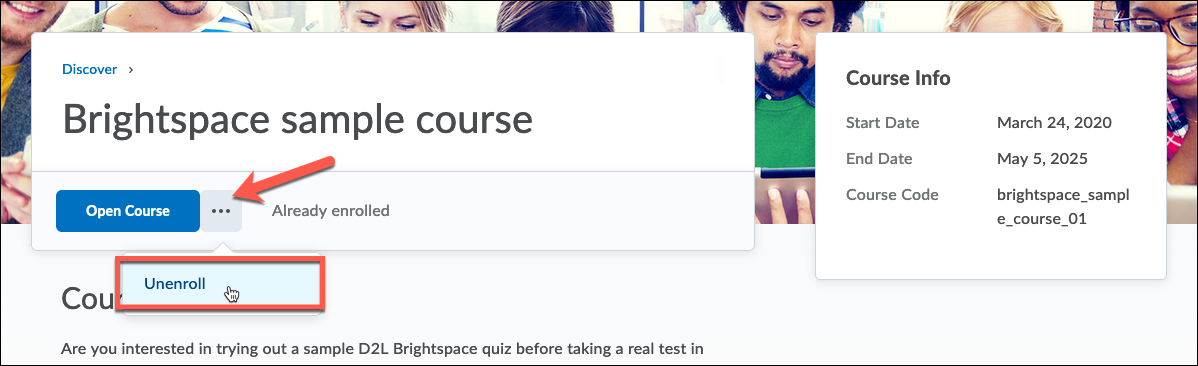
Un-enroll yourself from a "Discover" course:
- Click on the course you need to unenroll from.
- Next to the "Open Course" button, click the icon with three dots ("...").
- Click "Unenroll". The course will be removed from your account.
To un-enroll from the sample course:
- Log in to D2L Brightspace.
- From the homepage, click "Tools" in the top menu bar, then select "Discover" from the dropdown menu.
- Click on the course you want to remove yourself from.
- Next to the "Open Course" button, click the icon with three dots ("...").
- Click "Unenroll". The course will be removed from your account.