Awards: Receive your award (badge or certificate)

The Awards tool makes it possible for students to earn badges or certificates in their courses, if the instructor chooses to use them. These awards can be given ad-hoc by the instructor, or there may be conditions that you need to meet, such as completion of a task or earning a certain grade on an assignment.
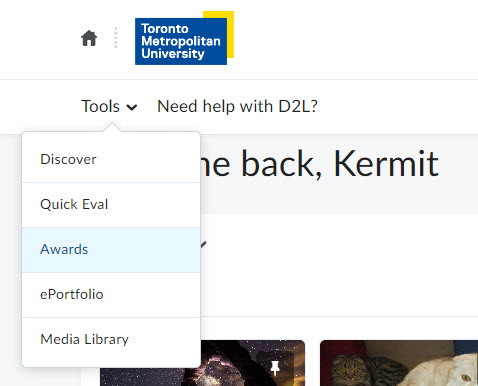
Awards can be found in the Brightspace homepage, under Tools.
It may also appear in your course, under Assessment.
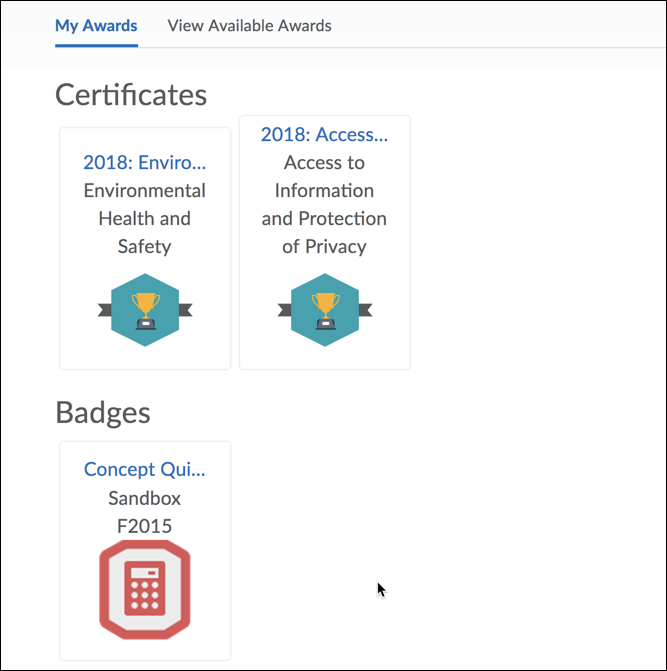
If you are taking training that is entirely online, an excellent example of this may be a printable certificate that you earn upon completion of all course requirements.
What do you do if you have either completed the requirements for an award, or your instructor has decided to give you an award, and you want to see, download or print your badge or certificate?
It is important to know that there is a small delay when you complete the requirements for an award. You will receive your badge or certificate shortly, usually within a couple of hours, but it may take as long as a day.
If you have email notifications enabled...
If you have email notifications enabled, when your badge or certificate is available, you will receive an email message, to let you know that you have earned your award. You can login to the course to see your badge or certificate.
Please review our tutorial to enable email notifications.
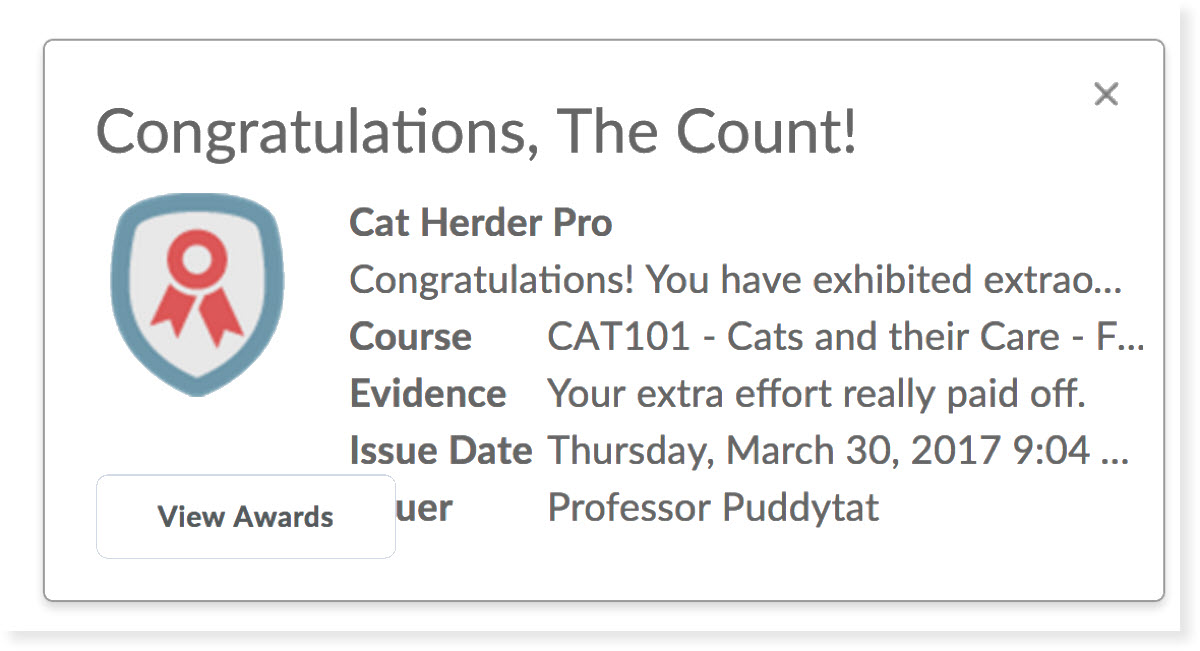
Login to your course
When you earn a new award or certificate, the next time you access D2L (regardless of whether you have email notifications enabled), you will see a popup that displays the details of your award, and has a link to view more details.
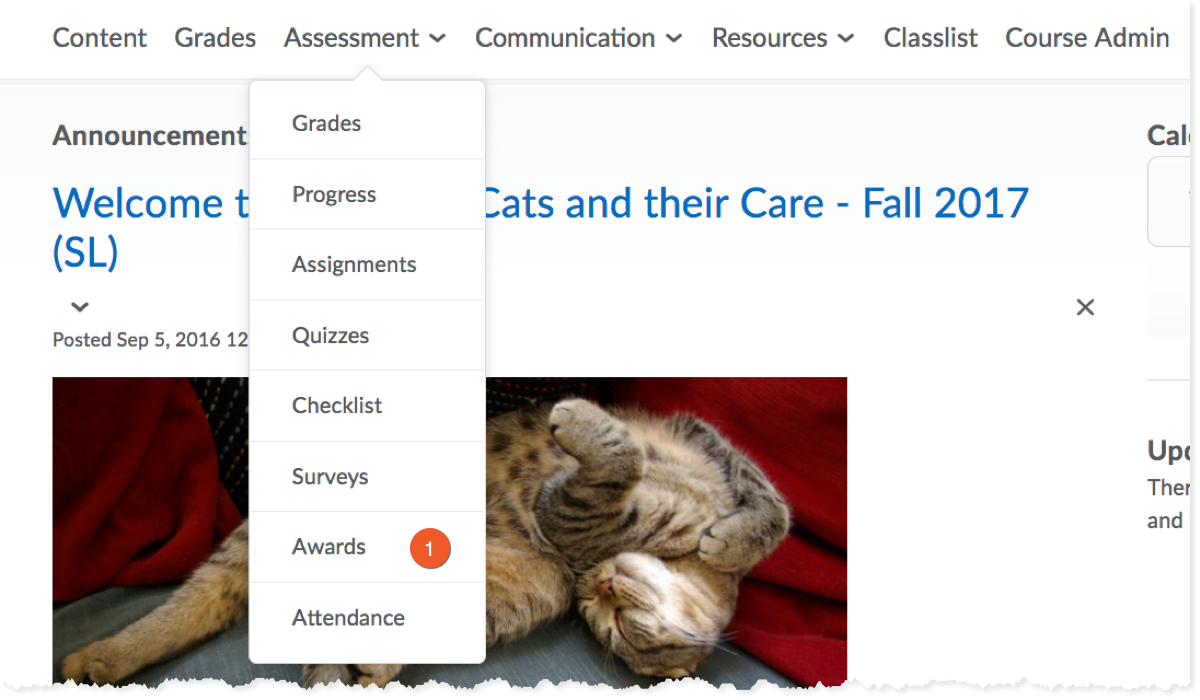
Find your awards in your course
1. Look in the nav bar of your course - you may see Awards as a top-level navigation item, or you will find the Awards tool if you go to Assessment > Awards.
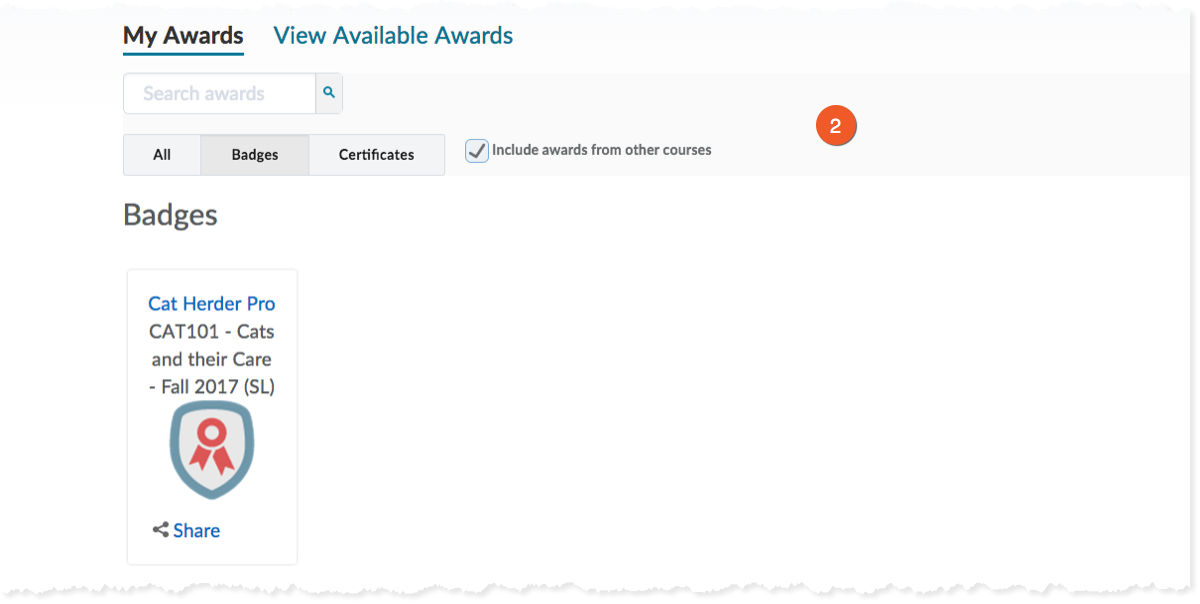
2. You will see any awards, and any available options for downloading or sharing.
Share a link to your award (badge or certificate)
You can now share a public link to any current badge or certificate that you've earned in D2L. For example, if you want to post the link on LinkedIn, or in your online resume.
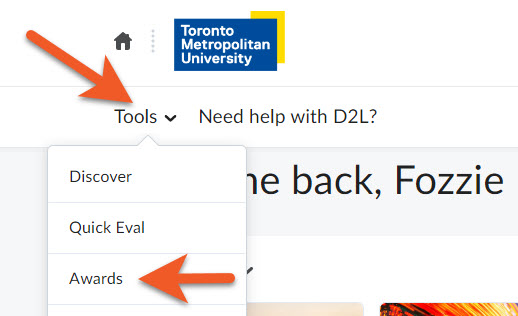
1. Login to D2L. On your MyCourses page, in the top navigation, click on Tools > Awards.
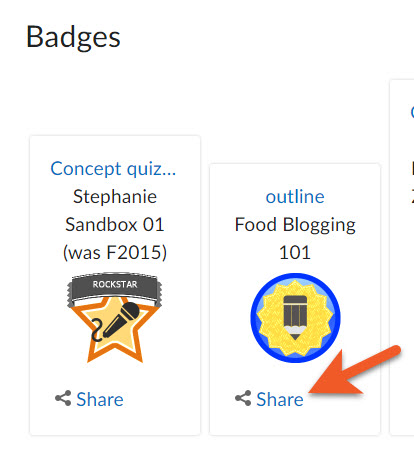
2. Locate the award you wish to share. Below the award, click on Share.
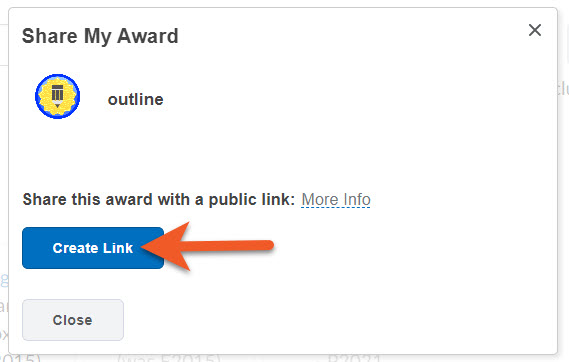
3. Click on Create Link.
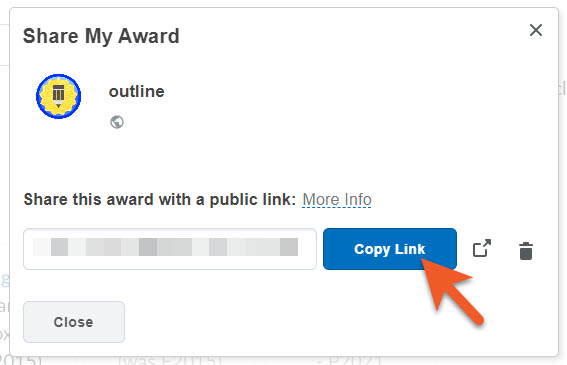
4. Click on Copy Link. Then go to wherever you wish to share the link and paste the URL. When you're done, come back to D2L, and click on Close.
Print your badge details
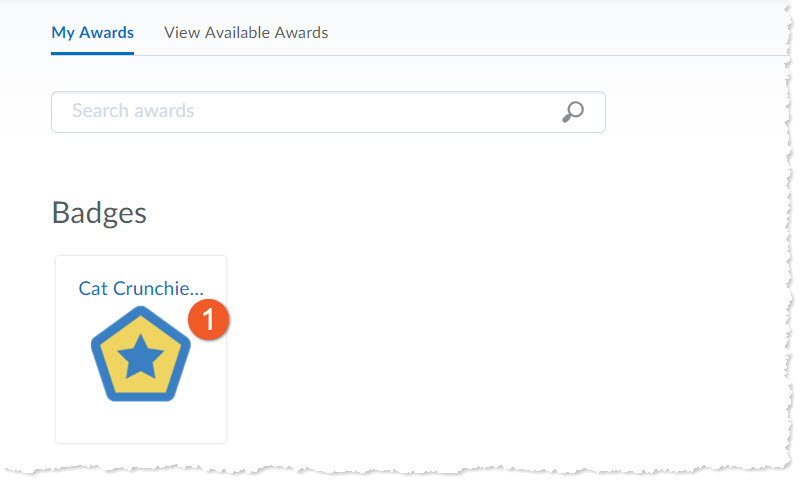
1. In your course, go to Assessment > Awards, and click on the badge name or icon for more details.
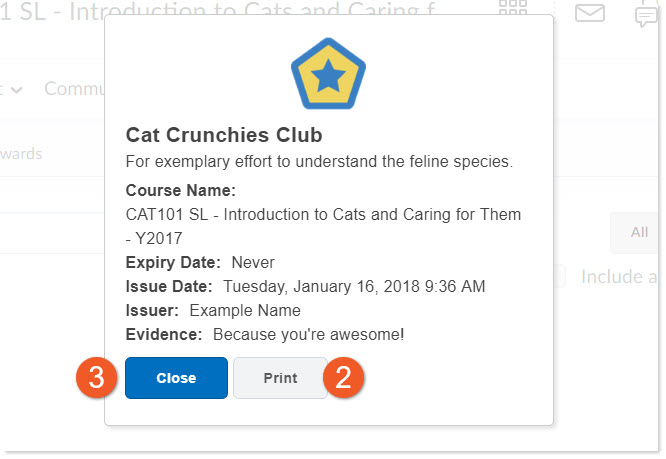
2. You will see a popup window which indicates the badge details. Click on the Print button to print out the details of your badge. Depending on your device, a printer dialogue box may open. Proceed to print the document, and close the dialogue box when you are done.
3. Click on the Close button to close the popup window.
Generate your certificate
If you want to download, share or print a certificate, you will need to generate the certificate first.
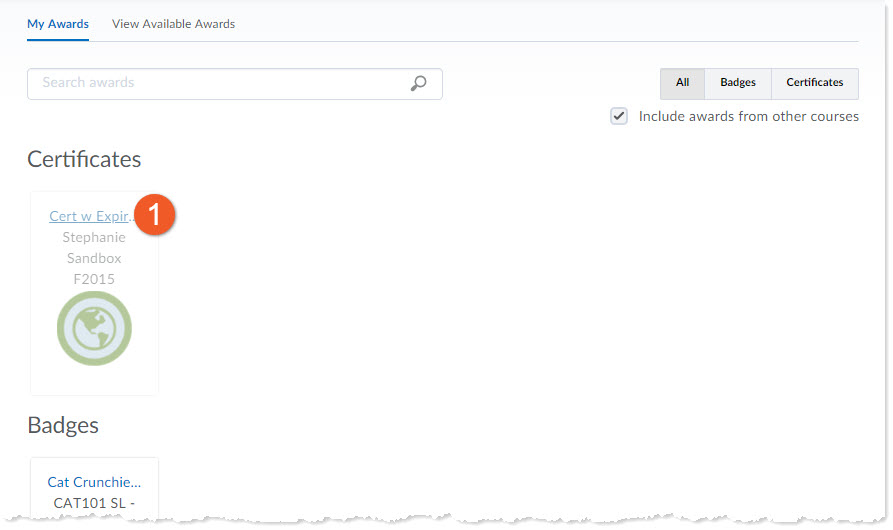
1. In your course, go to Assessment > Awards, and click on the certificate name.
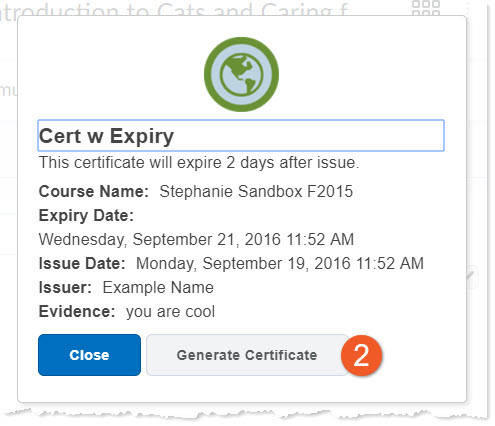
2. You will see a popup window which indicates the certificate details. Click on the Generate Certificate button.
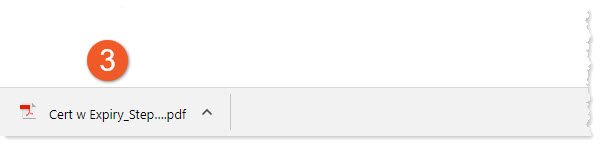
3. Look for the automatic PDF download. You will most likely see it in a bar lower left of your browser window. The file is saved on your computer in the default location set in your browser settings (often this is a folder named "Downloads").
Click on Close to close the popup window.
Print or share your certificate
Open the certificate in Adobe Acrobat Reader and print as you would any PDF document.
You can also share your certificate via email, Google Drive or any other method that you would use to share documents.
If your certificate is relevant to your career, you could consider sharing it online with potential employers, such as on LinkedIn, to provide evidence of your new skills or knowledge.
You can still access all of your badges and certificates after your course is complete, and for as long as you have access to D2L Brightspace.
Login to my.torontomu.ca and click on Your courses in D2L Brightspace. You are now on your My Courses page.
Click on Tools in the top navigation, and select Awards.