Brightspace Assignments data export
The Export Assignments Data tool is useful for instructors to retrieve assessment details, final scores, and any feedback associated with graded assignments, focusing on easy access to assignment data. This tool provides easier access to assessment data than the Assignments or Grades tools. It compiles the data from all assignments, including student names, submission dates, assignment due dates, grading status and more, into an organized and easily accessible spreadsheet.
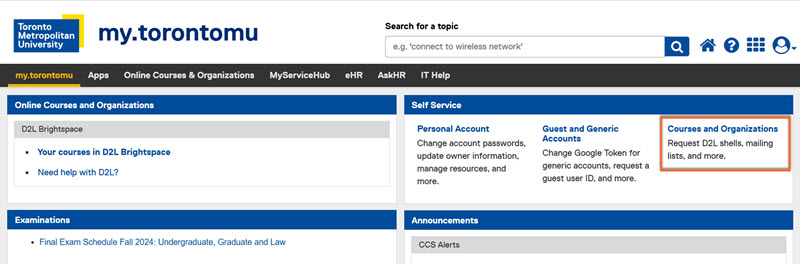
1. Go to my.torontomu.ca and sign in using your TMU username and password.
2. Navigate to Self-Service, and select Courses and Organizations.
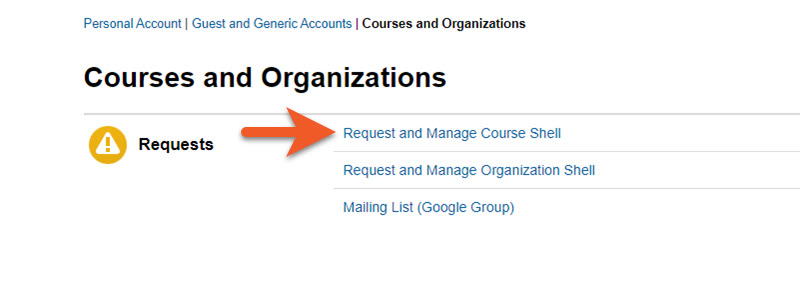
3. From here, select Request and Manage Course Shell.
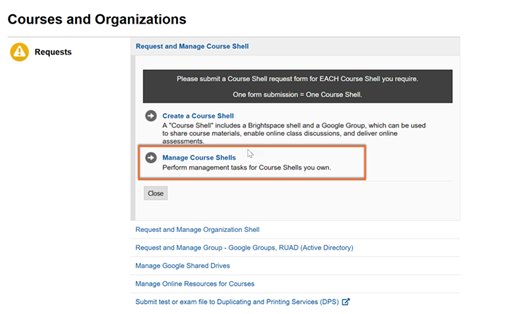
4. Select Manage Course Shells.
5. From the list of courses, select the one you’d like to manage.
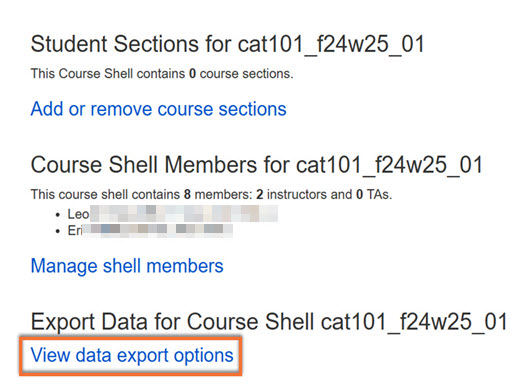
1. Navigate to the Export Data for Course Shell section.
2. Select View Data Export options.
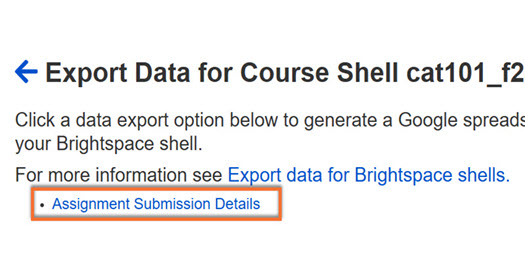
Select the Assignment Submission Details option to generate a Google spreadsheet of information for your Brightspace shell. Please note that the LPP Rubric Assessments data export option is only visible to those in LPP.
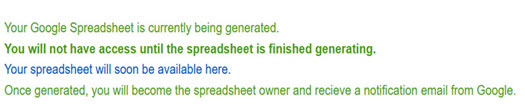
After selecting your export option, there will be a confirmation screen with information on next steps. The Google spreadsheet is being generated now and will become available for download once a Generate button appears on the screen.
Google Report Notification
Once the report has been generated and you have been given ownership of the spreadsheet, you will receive an automated email from Google. Please save this email in case you lose track of the report.
If you require any further assistance with this tool, please reach out to courses@torontomu.ca.