Contact
Contact
Sometimes applying for financial aid can seem tricky or you just need clarification on a deadline. Whatever your question, we’re here to help.
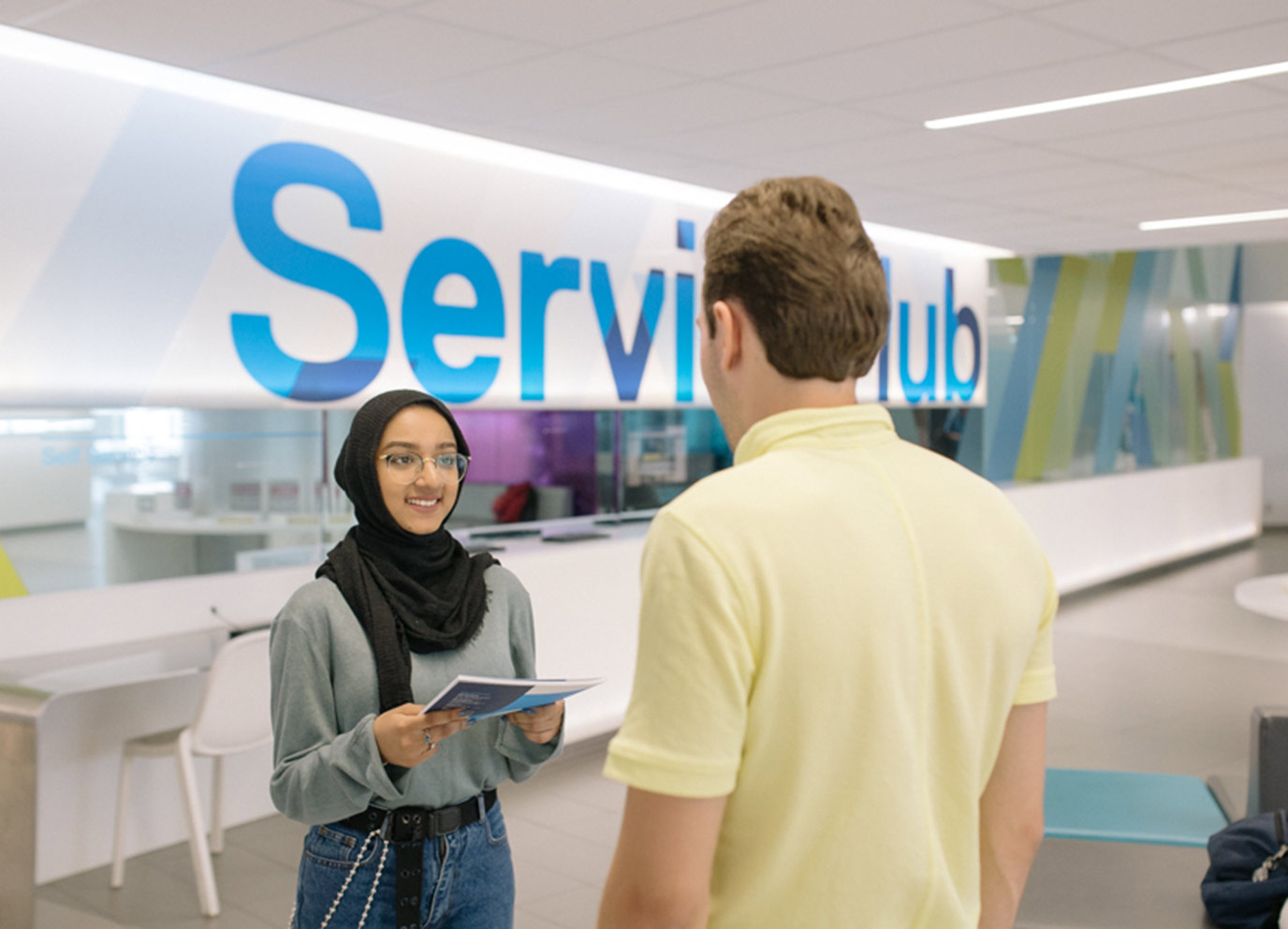
If you're applying for OSAP or have applied already, Toronto Metropolitan University (TMU) may be able to help answer your application questions through the ServiceHub.
You can also contact the National Student Loan Service Centre (NSLSC) for questions about your loans and repayment options.
If you're an out-of-province, U.S. or international student, please refer to our dedicated resources for help with your financial aid.

OSAP Advisor Appointments at the ServiceHub
Did you know that you can meet with an OSAP advisor through the ServiceHub? Find out how to book an appointment and get help with your application.
At this time, we only offer appointments for the following topics:
- Bankruptcy
- Family information isn't available (i.e. you have an Extenuating Parental Circumstances form)
- Income verification, discrepancies and/or errors
- Restrictions
If your question is related to any of these categories, please choose one of the following options:
In-Person and Phone Inquiries
OSAP advisors' availability is listed on the ServiceHub contact page.
Virtual Appointment
An email confirmation and appointment details will be emailed to you shortly after booking.
ID Requirements for OSAP
For all student government aid inquiries, please be prepared to present valid photo identification and occasionally, your Social Insurance Number (SIN) card.
Certain requests or actions will need you to present both photo identification and proof of your SIN card. These include, but are not limited to:
- Picking up a government-issued cheque
- Requesting a reset of your OSAP password
- Accessing your Ontario Access Number (OAN)
These requirements are established by the Ministry of Colleges, Universities, Research Excellence and Security. No exceptions can be made.

Valid Types of Photo ID
Acceptable forms of valid photo identification include your:
- TMU OneCard
- Driver’s license
- NEXUS card
- Health card (with a photo)
- Ontario photo card
- Indian status card
- Passport
- Permanent residence card
- Firearms license
- LCBO Bring Your ID (BYID) card (issued by the LCBO)
Proof of SIN
For your proof of SIN, we can only accept either your SIN card, your SIN confirmation letter issued by Service Canada, or your proof of income statement from the Canada Revenue Agency (CRA) if it contains the full SIN. Without sufficient proof of SIN, we may not be able to assist you.
We can't accept the following documents in place of your SIN:
- Canada Pension Plan (CPP) Statement of Contributions
- Notice of Assessment from the CRA, or any other tax-related document (e.g. T1, T4, T5)
No SIN Card
If your SIN card has been lost or stolen, please contact Human Resources Development Canada to request a SIN confirmation letter. Find out how at Service Canada (external link) .
How to Join Your Virtual Appointment
Our appointments are hosted via Google Meet. Explore the Google Meet Guide to learn how to use the platform.
To join the appointment, please click the “Join with Google Meet” button in your calendar invite. If you're calling in, please use the telephone number and pin in your calendar invite.
For your appointment, please have the following available:
- Working video or web camera (webcam), for identification purposes
- All of your supporting documentation (if applicable) related to the subject of your appointment, ready to share via screen share
- Your 2 pieces of valid photo ID and proof of SIN (either SIN card or SIN confirmation letter from Service Canada)
Use Your TMU Student Email
If you're a TMU student, please ensure you're accessing the appointment using your TMU email, not a personal email account. If you have multiple Google/Gmail accounts, be sure that you're only logged in to your TMU student email. To ensure you're fully signed out of multiple emails, refer to the Google Sign-Out Instructions (external link) .
External Emails
If you're joining this appointment with an email address that isn't your TMU email nor a Gmail account (for example, Yahoo or Hotmail), you may not be able to use the “Join with Google Meet” option. Please call in for your appointment using the phone number and pin provided if your invite if the link there doesn't work.
Potential Delays
Thank you in advance for your patience. We may need a few extra minutes and be delayed in joining the appointment.
Cancel Your Appointment
If you're unable to make it to your appointment, please email sfaappointments@torontomu.ca at least 24 hours before your scheduled time.
Use the subject heading “SFA Appointment - Cancellation” and include your name, TMU Student Number and the date/time of your appointment in your email.
Reschedule Your Appointment
To reschedule, please cancel your existing appointment first, then use the SFA Appointment Booking (external link) link to book a new appointment.
There's no automatic rescheduling function.