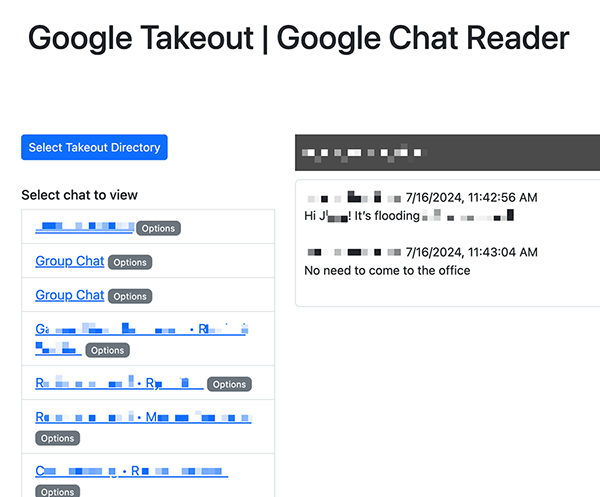
How to export, save and read Google Chat messages
1. Log in to your TMU Google account and then go to takeout.google.com (external link) .
2. Choose Google Chat for the data to take out, then select Next Step.

3. Follow the prompts to select how you would like to receive the exported file.
4. Click the Create export button to initiate the export process.
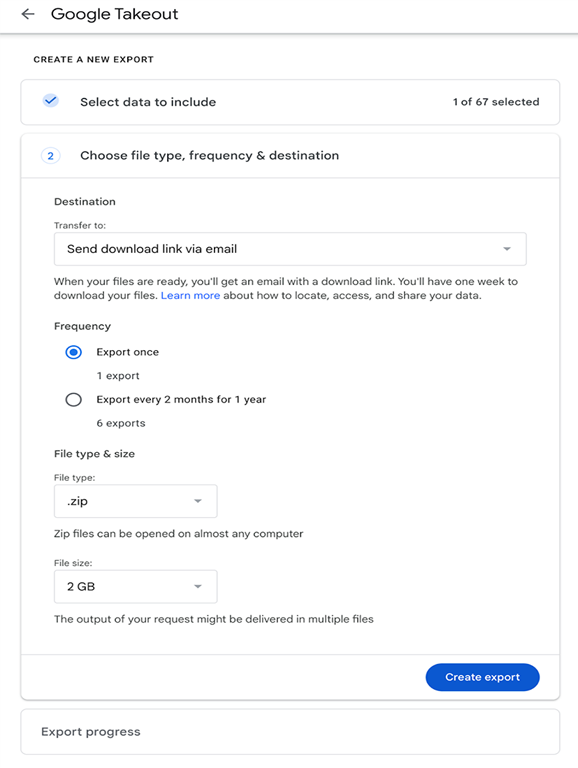
Depending on the size of the file, it may take some time before the export is complete.
Once your Google Takeout export is completed, an email should arrive in your Gmail inbox containing the link to your file. Depending on the export file size, there may be more than one link to the exported file. The files will be in a Zip file format.
Click the file link to download it to your computer’s local hard drive. You can then drag-and-drop the file into a folder in your Google Drive if you’d like a backup copy on your Drive.

- Open the downloaded Google Takeout Zip file on your local computer. Upon opening, you’ll be prompted to unzip the file.
- Once you’ve unzipped the file, open a web browser and go to TMU’s in-house tool Google Takeout Google Chat Reader.
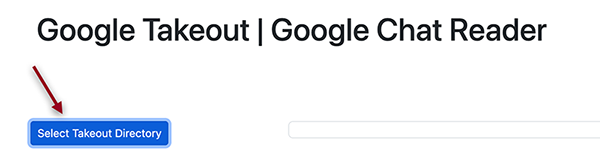
- Once loaded, click the “Select Takeout Directory” button to select the folder containing the exported file on your local computer.
4. Upon selecting the folder, the exported Google Chat messages can be viewed in the browser.