-
Launch the Perceptive Content client. Go to the Perceptive Content Viewer by opening any document.
-
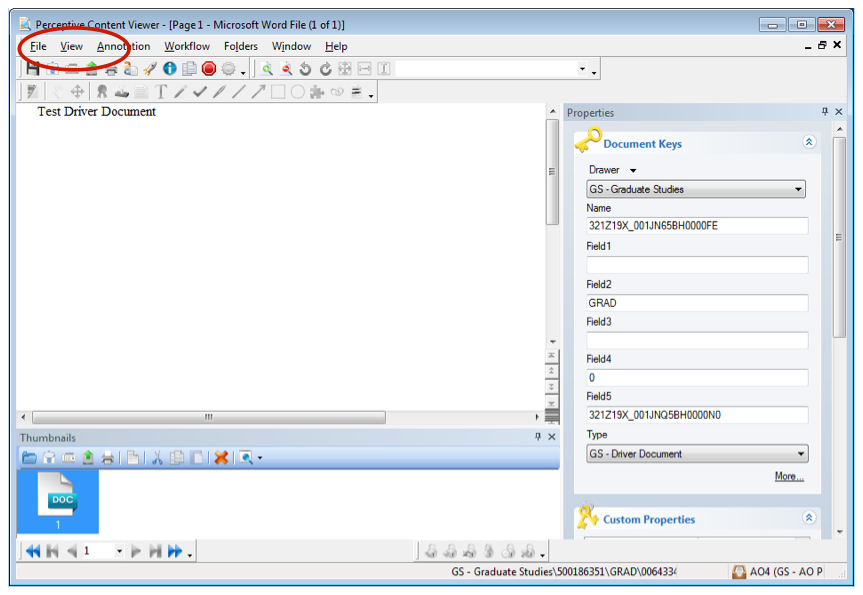
Click View > Toolbars > Customize…
-
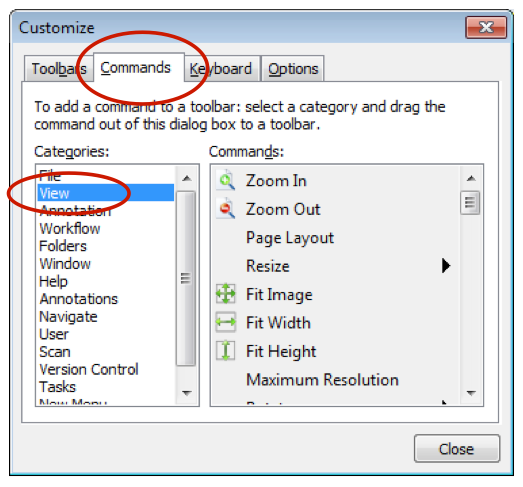
From the dialogue box, click the Commands tab. In the Categories, click View.
-
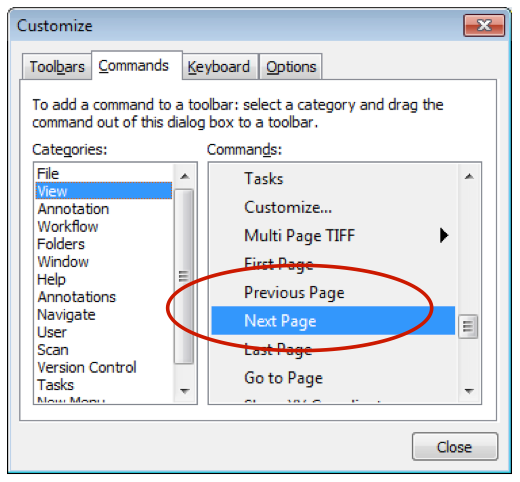
In the Commands list, click Next Page and drag it to the Toolbar.
-
Click Previous Page and drag it to the Toolbar.
-
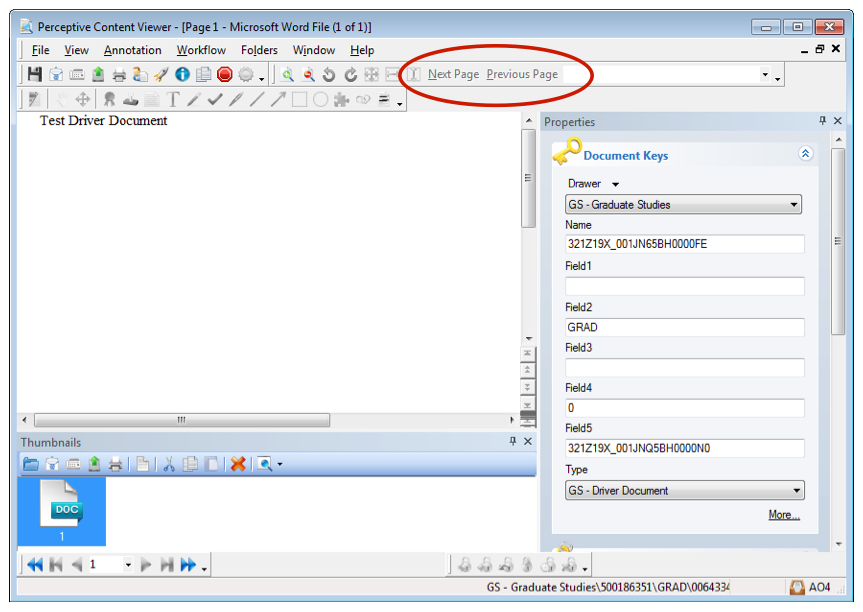
Click Close. The Next Page and Previous Page buttons will appear similar to this.