|
Step
|
Action
|
|
1.
|
Open a browser (preferred browser is Mozilla Firefox)
and go to www.ryerson.ca/ogf
Click on the Markview link OR
click on the link located in your notification email.
In this example click on the Markview
link.

|
|
2.
|
Enter your user name.
Enter a valid value e.g. "student1".
|
|
3.
|
Press [Tab].
|
|
4.
|
Enter your password into the Password field.
Enter a valid value e.g. "july2015".
|
|
5.
|
Click the OK button.

|
|
6.
|
The top left section of the viewer contains all the header
details. This includes the Suplier, Invoice Number, Date, and Amount.
|
|
7.
|
The top right hand corner of the viewer contains further
information about the invoice and outlines the actions you can take on the
invoice. This also includes any comments or questions the previous user that
processed the invoice may have.
|
|
8.
|
Click on the Accounting Tab to edit the invoice amount and
accounting lines.
Click on the Accoutning Tab

|
|
9.
|
The Accounting section will open. You can now view the
current distrubution lines for the invoice.
|
|
10.
|
To edit the line you must first expand the line you are
going to edit.
In this example it is line 2.
Click the expand arrow.

|
|
11.
|
Line 2.1 will appear. Now the accounting details can be
added to this line.
|
|
12.
|
Looking at line 2.1 we see that both the amount and the GL
Account information are required (highlighted in yellow). The Description
Column displays the correct dollar value that needs to be paid.
NOTE: Write down the
Amount listed in the description field so that we can use it in the next few
steps.
Click the Edit the
distribution button to continue.

|
|
13.
|
First we need to add the amount.
Click the Amount field

|
|
14.
|
Enter the amount you noted earlier.
Enter a valid value e.g. "1893.66"
|
|
15.
|
Click on the Distribution List
of Values button.

|
|
16.
|
Leave the Company field with the default value
"1"
Click the Drop down menu for the Fund.

|
|
17.
|
A listing of funds will appear. Select the
appropriate fund that will be charged.
In this example select fund 11.

|
|
18.
|
Click the Drop down menu for the Cost Center.

|
|
19.
|
Click in the Cost Center
input field

|
|
20.
|
Enter a valid value e.g. "%HR%" .
|
|
21.
|
Click on the Dropdown arrow.

|
|
22.
|
A listing of Cost Centers that Description contains HR will
appear.
Search for the desired Cost Center and Select it.
In this example select the Cost Center 10222.

|
|
23.
|
Click on the Account
Field.

|
|
24.
|
Enter in the Account.
In this example Enter a valid
value e.g. "7671".
|
|
25.
|
Click on OK

|
|
26.
|
You will now see that both the Amount
field and Account Coding
fields are complete.
Click on Save to
continue.

|
|
27.
|
Navagate back to the top of the viewer where you can select
an Action button.
Click on Approve
to transition the invoice out of your working folder.

|
|
28.
|
If you have any comments you can enter it in the comments
input box. If not you can just click on OK to proceed.
In this example click on OK.

|
|
29.
|
You will see a message in the top left hand corner of the
viewer indicating that the invoice has been successfully approved.
The viewer will now automatically populate with the next
invoice in your list of invoices you have to process.
If you would like to navigate back to the full listing of
invoices you can do so by clicking on the Return to List in the top right
hand corner of the page or you can process the next invoice in the viewer
below.
In this example click the Return
to List link.

|
|
30.
|
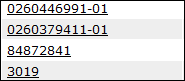
You are now back to the listing of invoices in your inbox
that require your attention. You can now select any one of the Invoice
Numbers listed to open and process the next invoice .
Click on of the invoice numbers to complete this session.
|
|
31.
|
End
of Procedure.
|