-
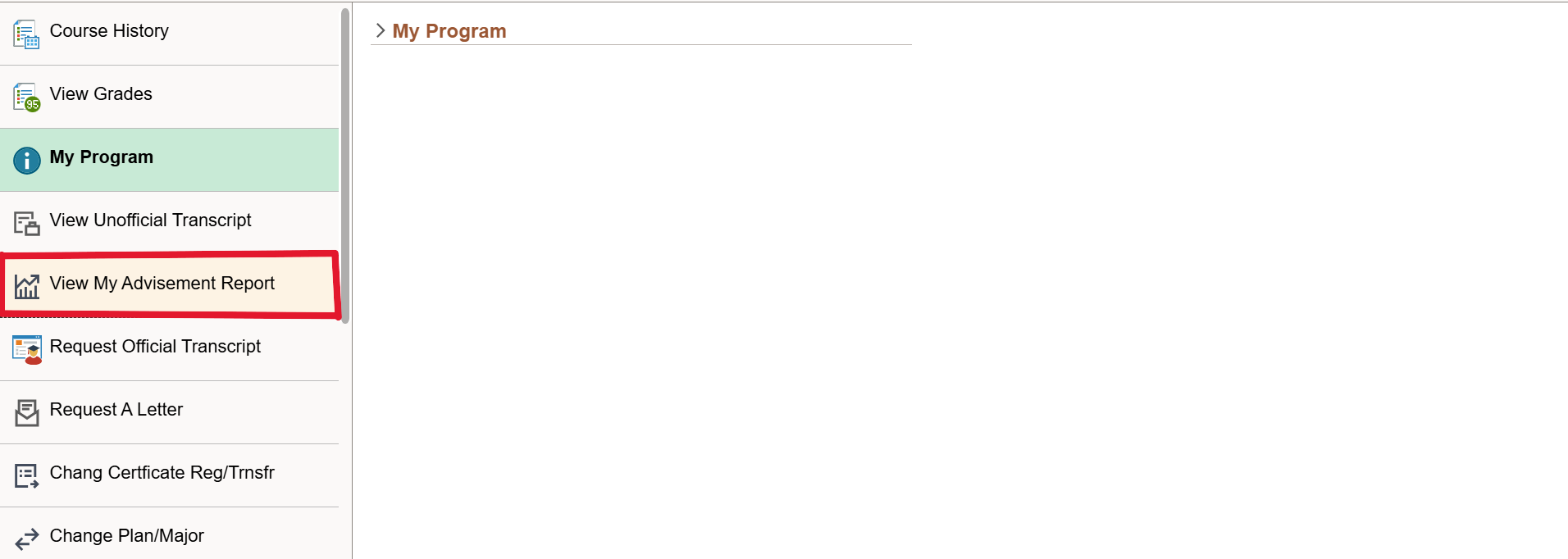
Click the View My Advisement Report menu item.
-
Click the View My Advisement Report link.
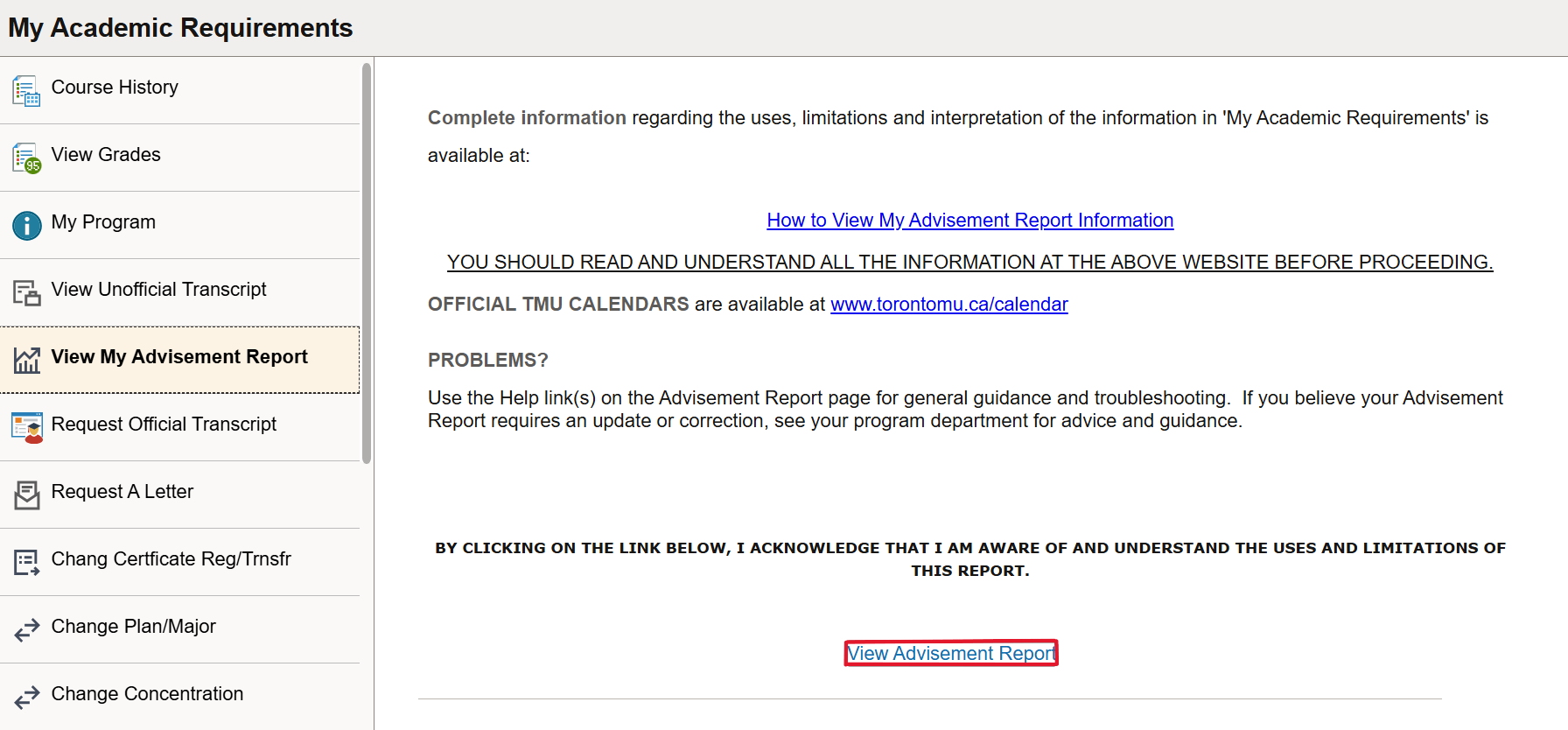
This page provides information about who can use the report and where to find complete information about its uses and limitations.
-
Click Expand All.
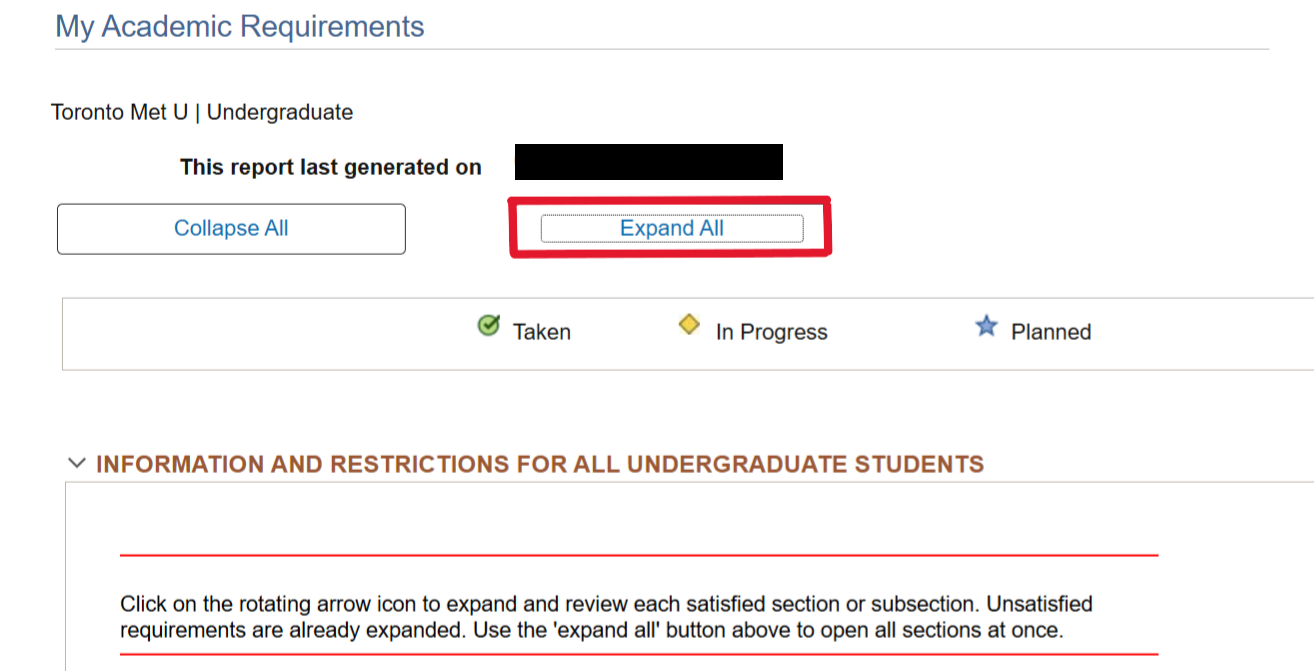
Expanded view:
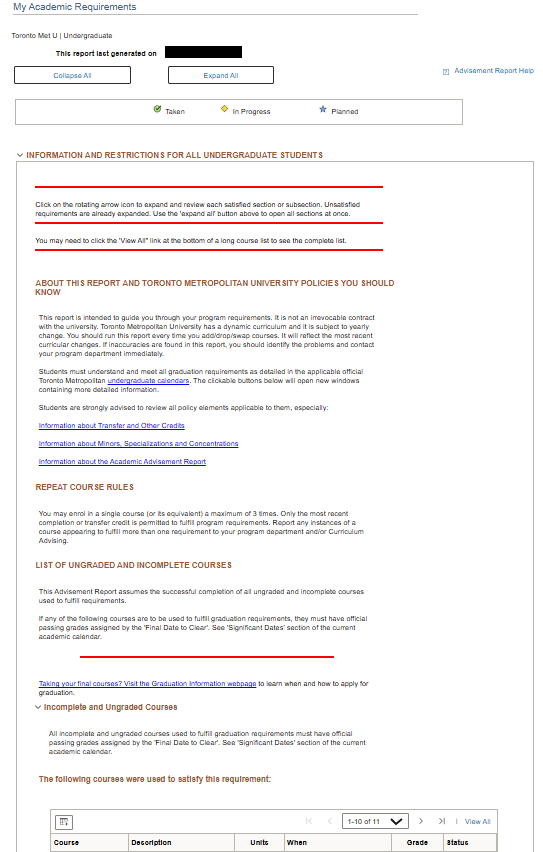
This is your Advisement Report. It shows all the graduation requirements for your currently active program and plan(s).
- The report is broken down into a number of sections that can be expanded by clicking ► or collapsed by clicking ▼ to the left of the title.
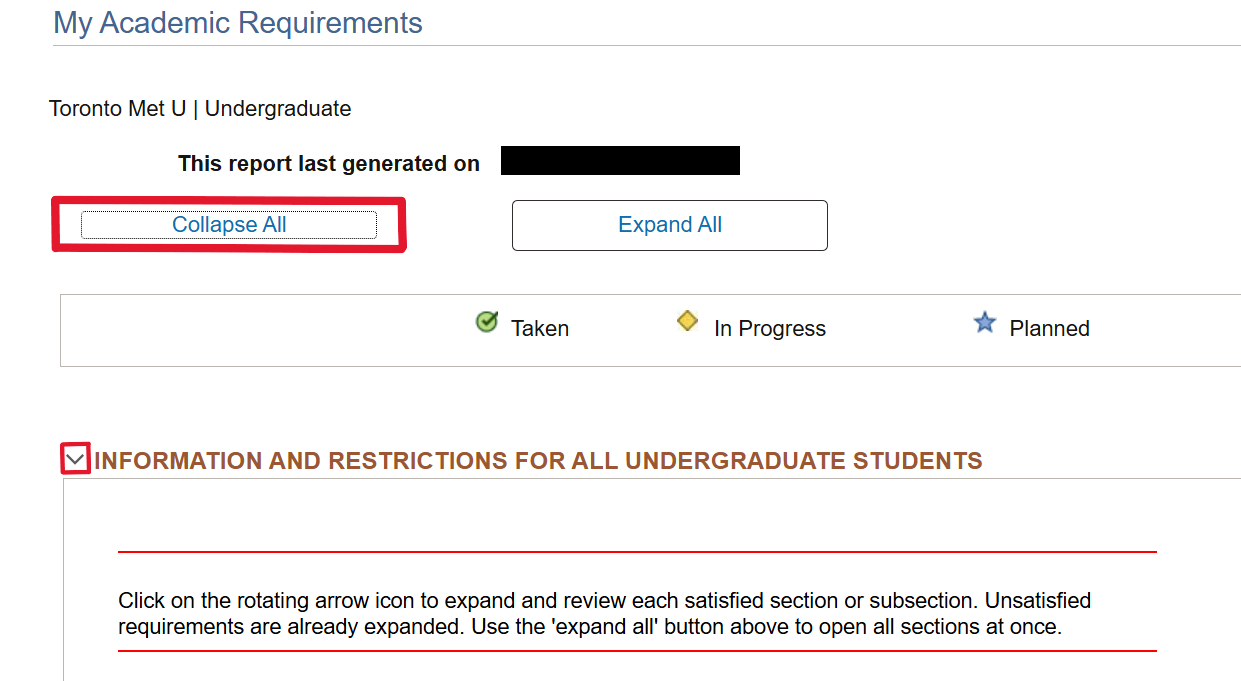
- To collapse all of the sections, you can use the Collapse All button at the top of the report.
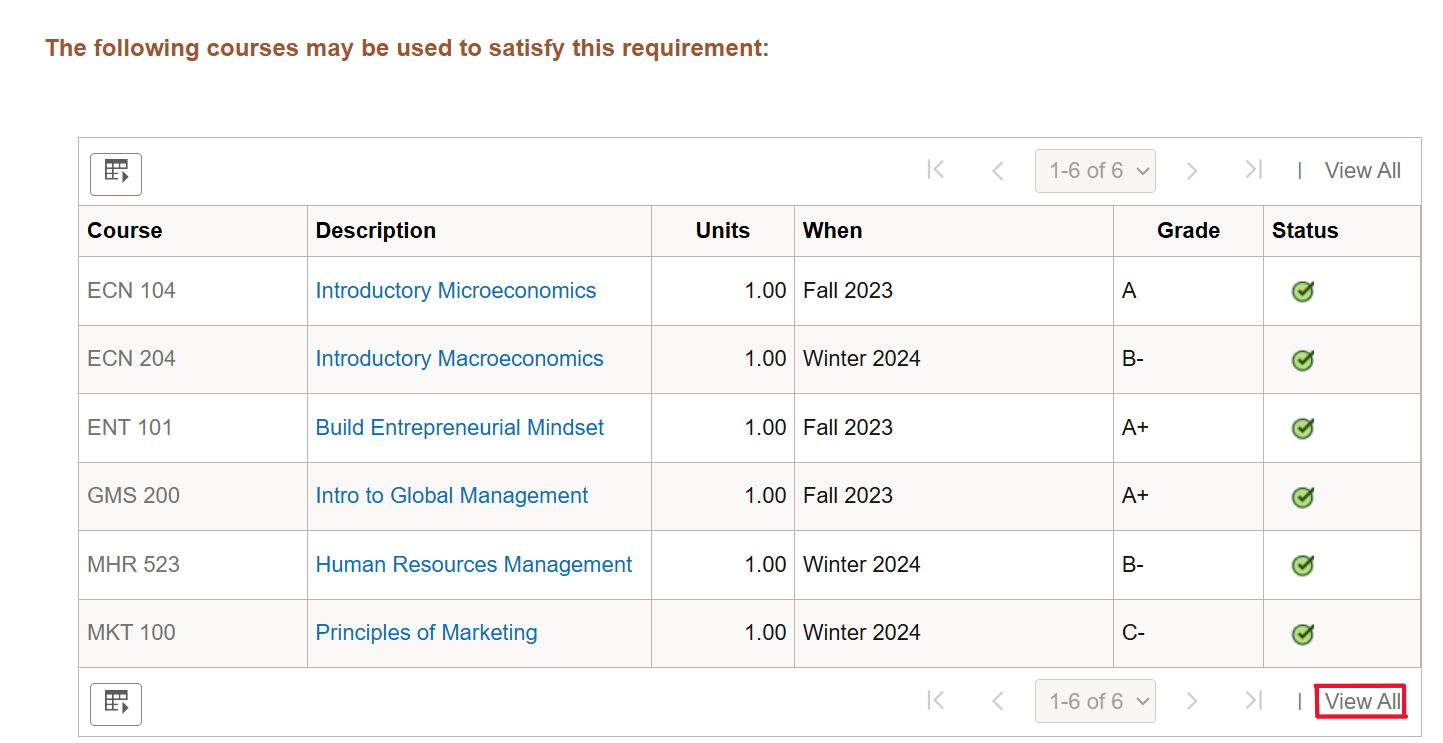
This shows a list of courses that meet one of the requirements.
- If the course list is long, only the first part of it displays. To view the full list, click the View All link.
- You can sort each course grid by clicking on the top of a column. You can sort by course description or when you took the course. (You will need to click twice on "When" to put your most recent courses first.)
- Click the course Description to see the course details from the course catalogue. You can then inquire on what sections of the course are available, using the View Class Sections button.